Your iPhone on the big screen
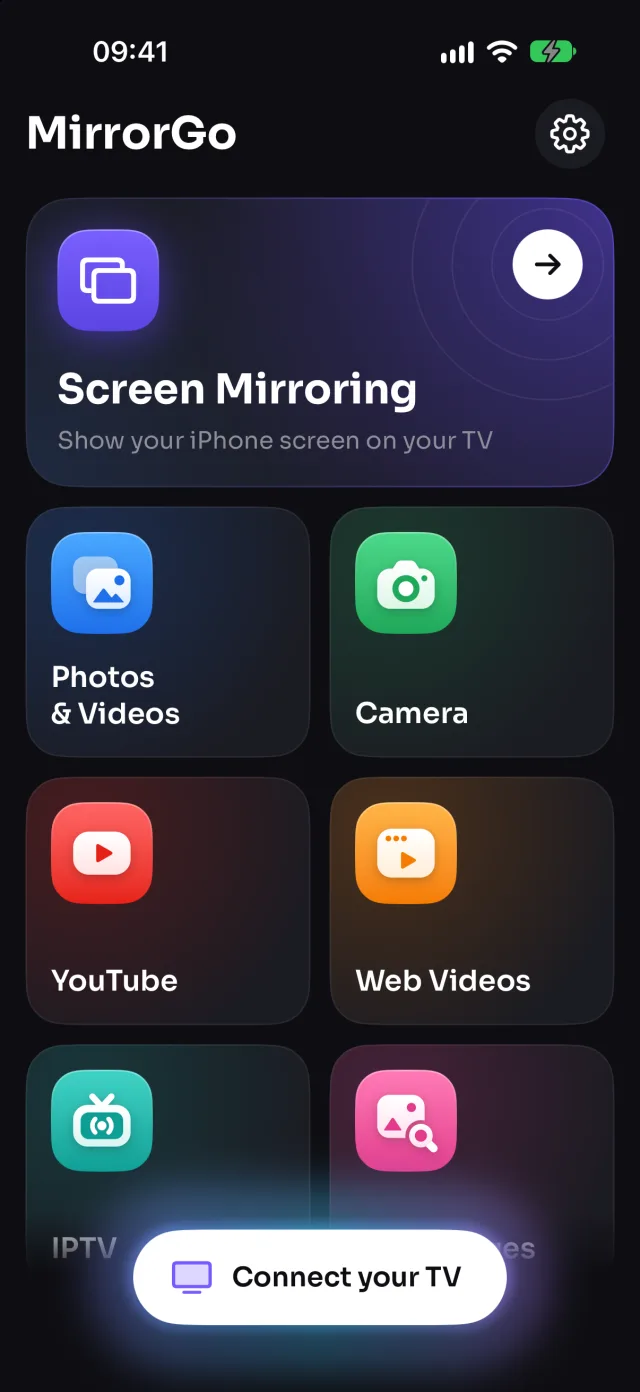
MirrorGo is an iPhone app that mirrors your screen to your TV and casts photos, videos, your camera, web videos, live TV channels and YouTube to it. It works with Samsung, LG, Roku, Google TV, Android TV, Chromecast, Fire TV, Apple TV and any web browser, so with Sony, TCL, Hisense, Vizio, Philips and most other smart TVs too, with nothing to install on the TV.
Same Wi-Fi, no cablesSound includedNo account
Works with the TV you already have
Mirror it, or cast it
Show your whole screen, or send just what you're watching, in full quality, while your phone stays free.
Screen mirroring
Your whole iPhone screen on the TV, with sound, in any app.

Photos & videos
Your library on the big screen, videos in full quality, with a slideshow.

Camera
Show the room, a whiteboard or your pet live on the TV, front or back camera.

YouTube
The TV plays the video itself, in full quality, from where you were.

Web videos
Open a site, play the video, tap Cast to TV. Ads blocked.

Live TV (IPTV)
9,000+ free channels from 180+ countries, plus your own M3U playlists.

Web images
Search free images from Wikimedia Commons and show them full screen.
Any web browser
No TV found? Open smrr.tv on any TV or computer and type the code.
Mirror your iPhone screen to the TV
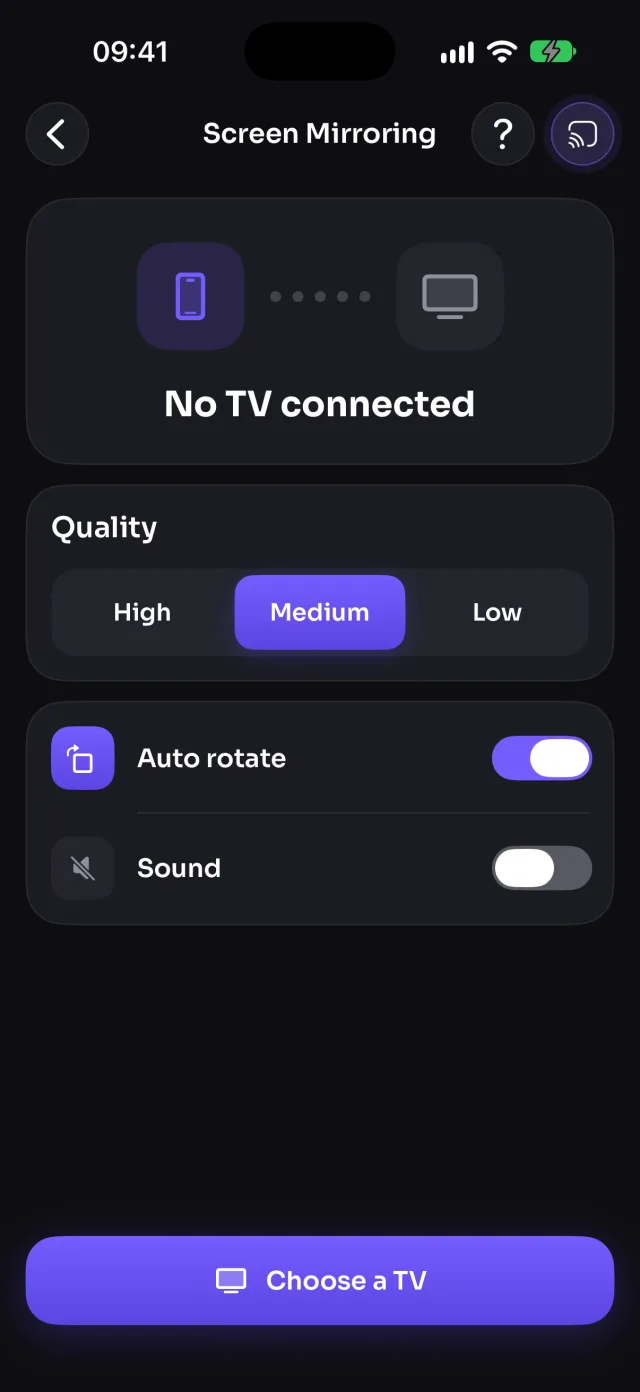
Everything on your phone shows on the TV in real time: apps, games, photos, websites, presentations. Start it once and keep using your phone; the TV follows.
- Works in every app, and keeps going while you switch apps
- Sound from your apps goes to the TV, never the microphone
- High, Medium or Low quality: sharper, or smoother on busy Wi-Fi
- Auto rotate: turn the phone sideways and the TV follows
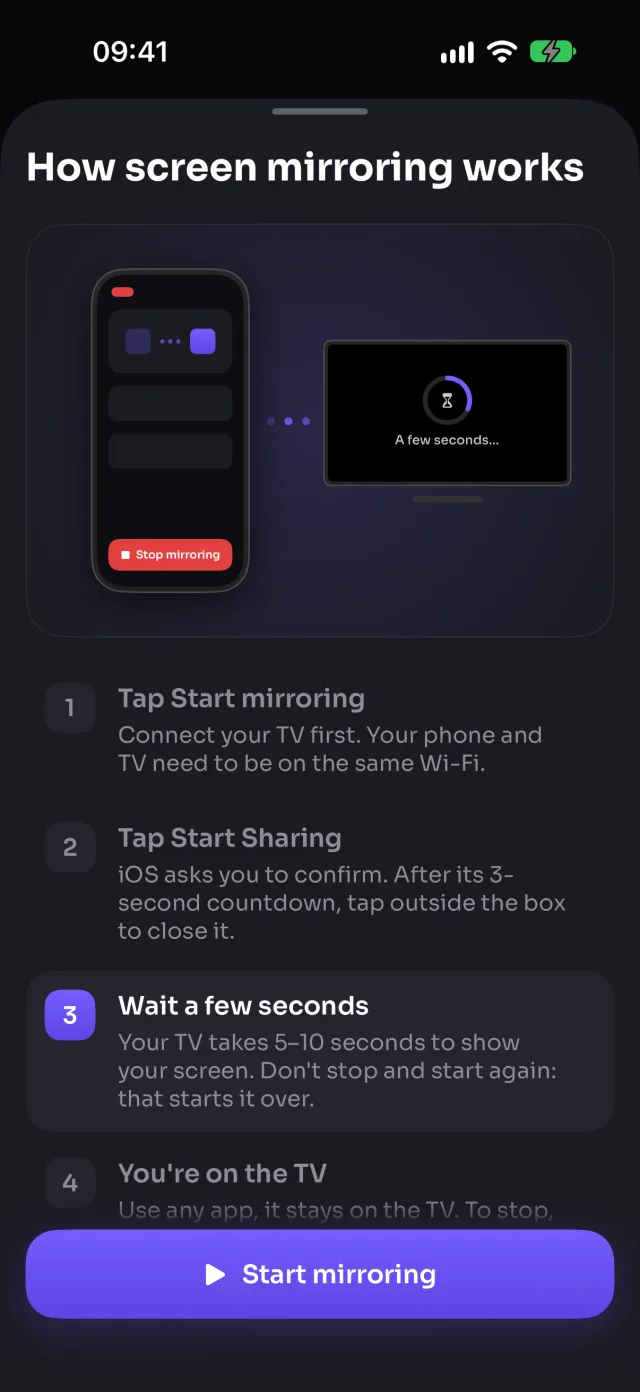
- A short guide shows how iOS starts it, step by step
Works on: Samsung, LG, Roku, Google TV, Android TV, Chromecast, Fire TV, AirPlay, Browser
Your photos and videos, on the big screen
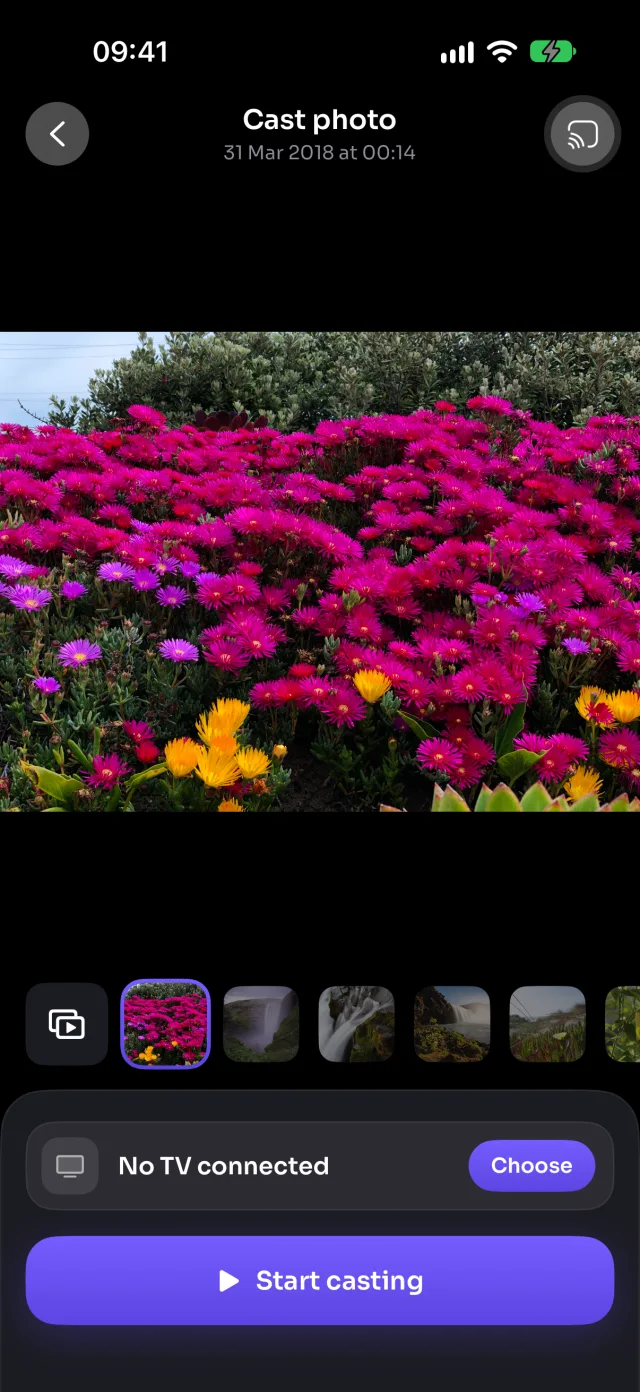
Pick a photo or a video and it's on the TV. Swipe to the next one and the TV follows. Videos play in their full quality, with sound, controlled from your phone.
- Photos at the TV's resolution, videos in their original quality
- Auto play: a slideshow (5 to 30 s a photo), videos to the end, then repeat
- Play, pause and seek on the phone; the TV plays it
- 4K and HEVC videos: converted only for TVs that can't play them
- Straight from your phone to the TV over your Wi-Fi, never uploaded
Works on: Samsung, LG, Roku, Google TV, Android TV, Chromecast, Fire TV, AirPlay, Browser
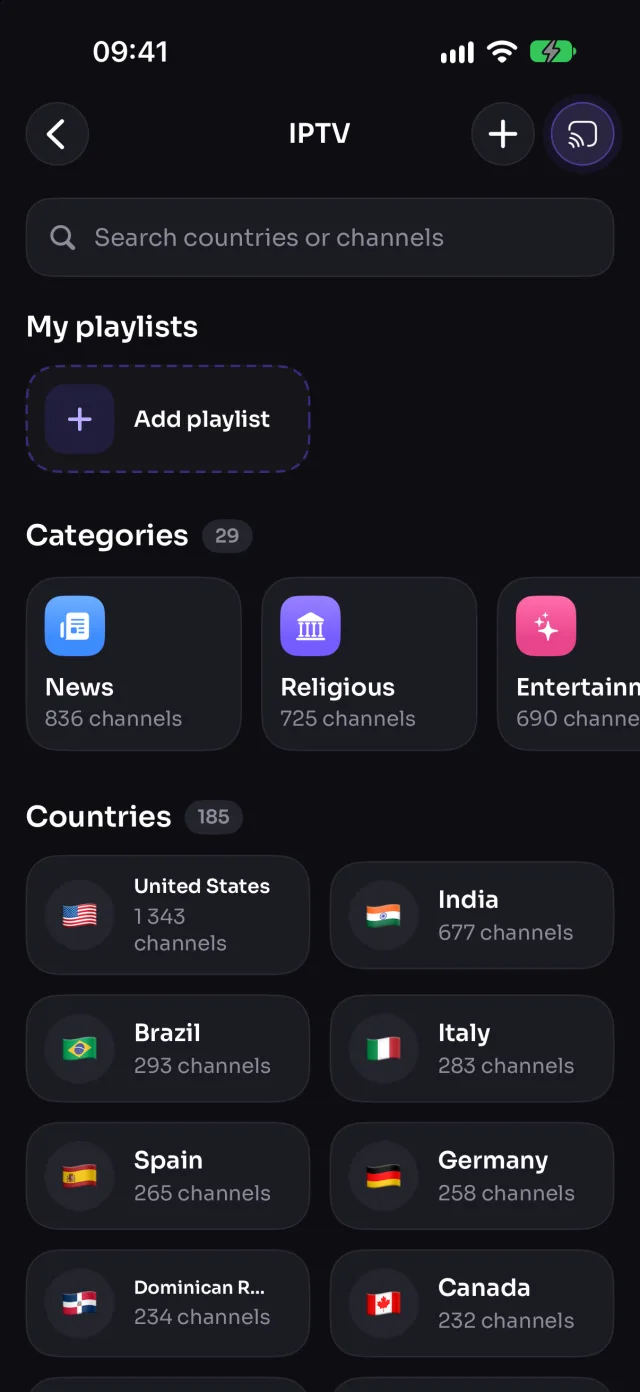
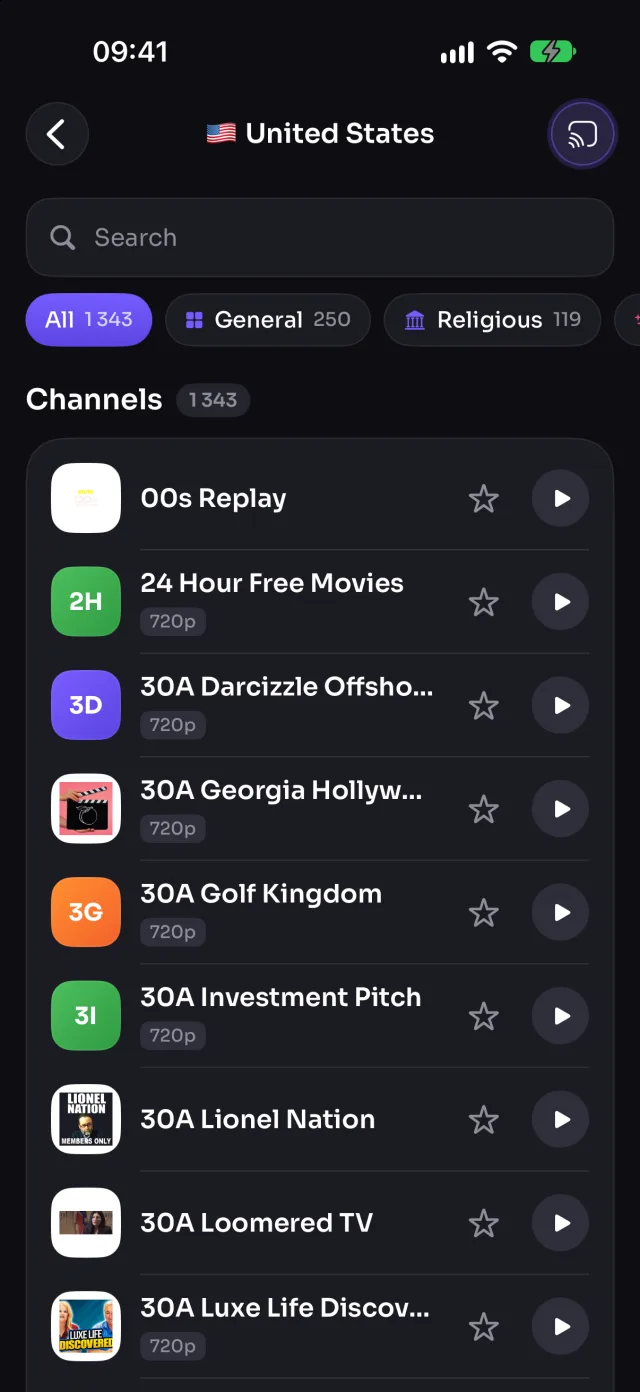
Thousands of free live TV channels
Browse free, public TV channels by country or category, from news to sports, movies, music and kids, and play them on your TV with one tap. Add your own M3U playlists too.
- 9,000+ channels from 180+ countries, in 29 categories
- Favourites one tap away
- Add your own M3U playlist links
- Keeps playing when you lock your phone or open another app
Works on: Samsung, LG, Roku, Google TV, Android TV, Chromecast, Fire TV, AirPlay, Browser
Channels come from the public iptv-org list. Like any free streams, some are offline or only play in their own country at times.
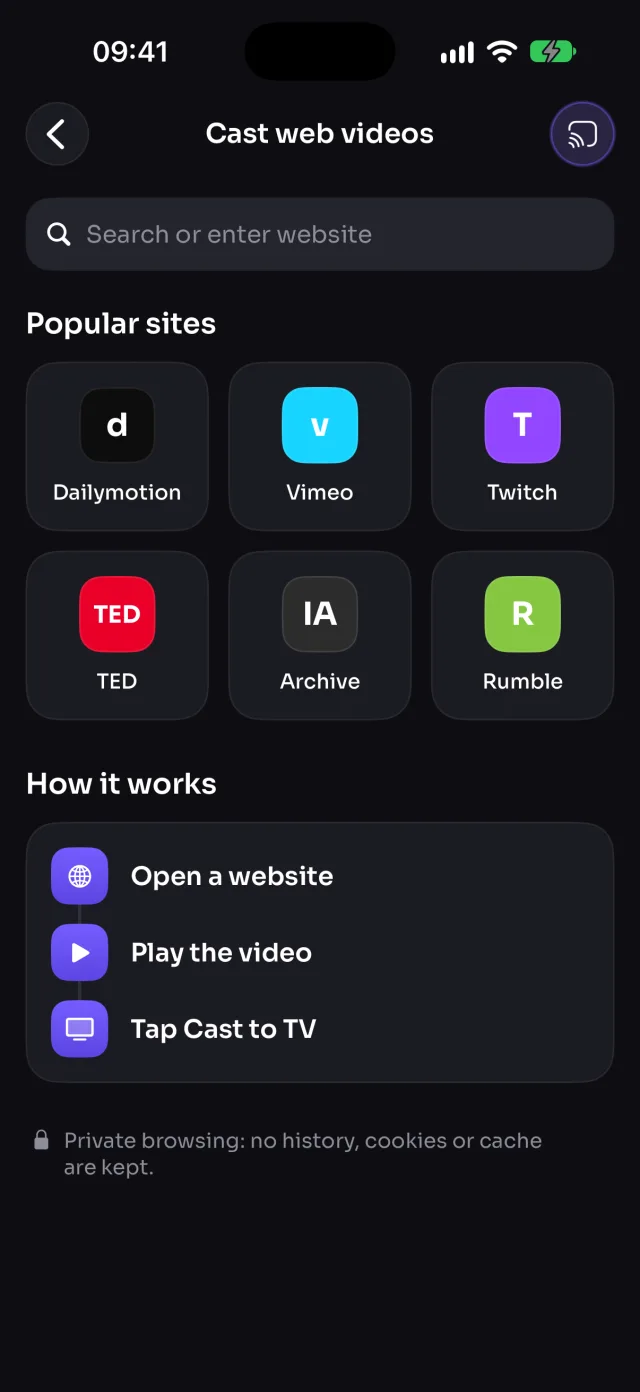
Cast videos from any website
Open a website in MirrorGo's private browser and play the video: MirrorGo finds it and sends it to the TV, which plays it in full quality while you keep browsing.
- Open any site, play the video, tap Cast to TV
- Picks the real video, not the ad, and blocks ad networks
- Picks up from where you were on the page
- Private browsing: no history, cookies or cache kept
Works on: Samsung, LG, Roku, Google TV, Android TV, Chromecast, Fire TV, AirPlay, Browser
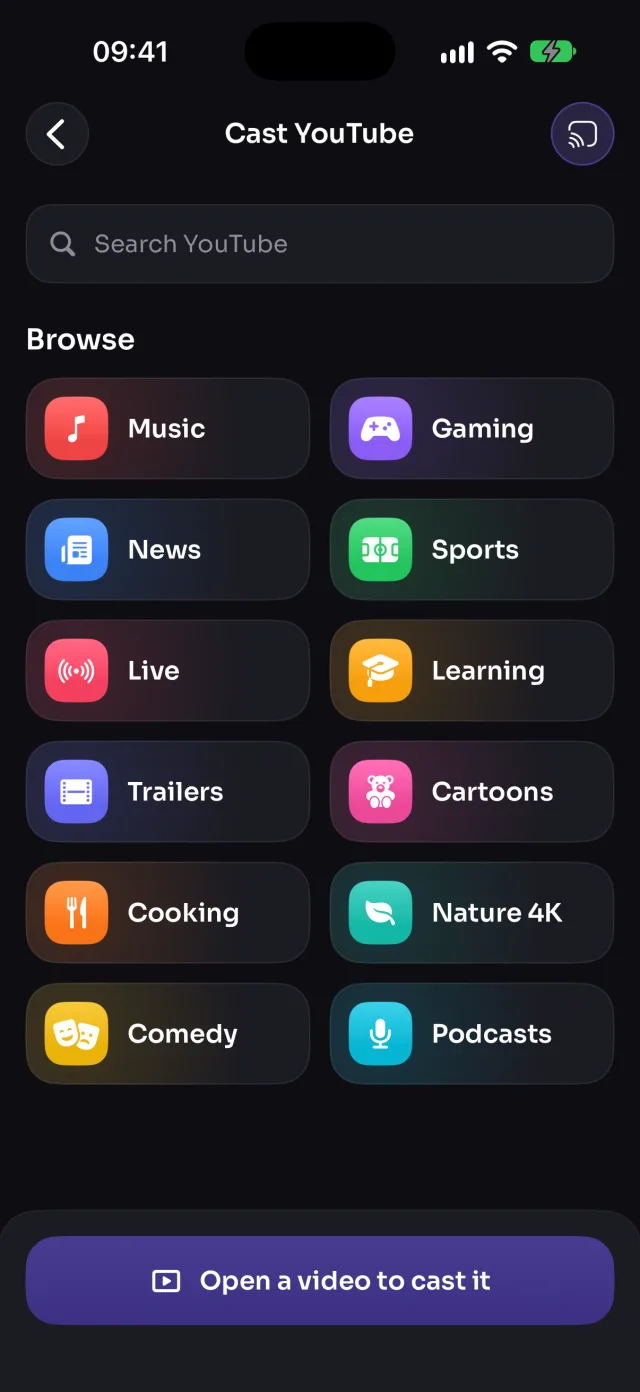
YouTube on your TV, played by the TV
Find a video in MirrorGo, by topic or with a search, then tap Cast to TV. The TV plays the video itself, in full quality, starting from where you were.
- Browse by topic (music, news, sports, live) or search
- Opens in the TV's YouTube app on Samsung and LG
- Plays on Roku, Google TV, Android TV, Chromecast and web browsers too
- Keeps playing when you leave the screen
Works on: Samsung, LG, Roku, Google TV, Android TV, Chromecast, Browser
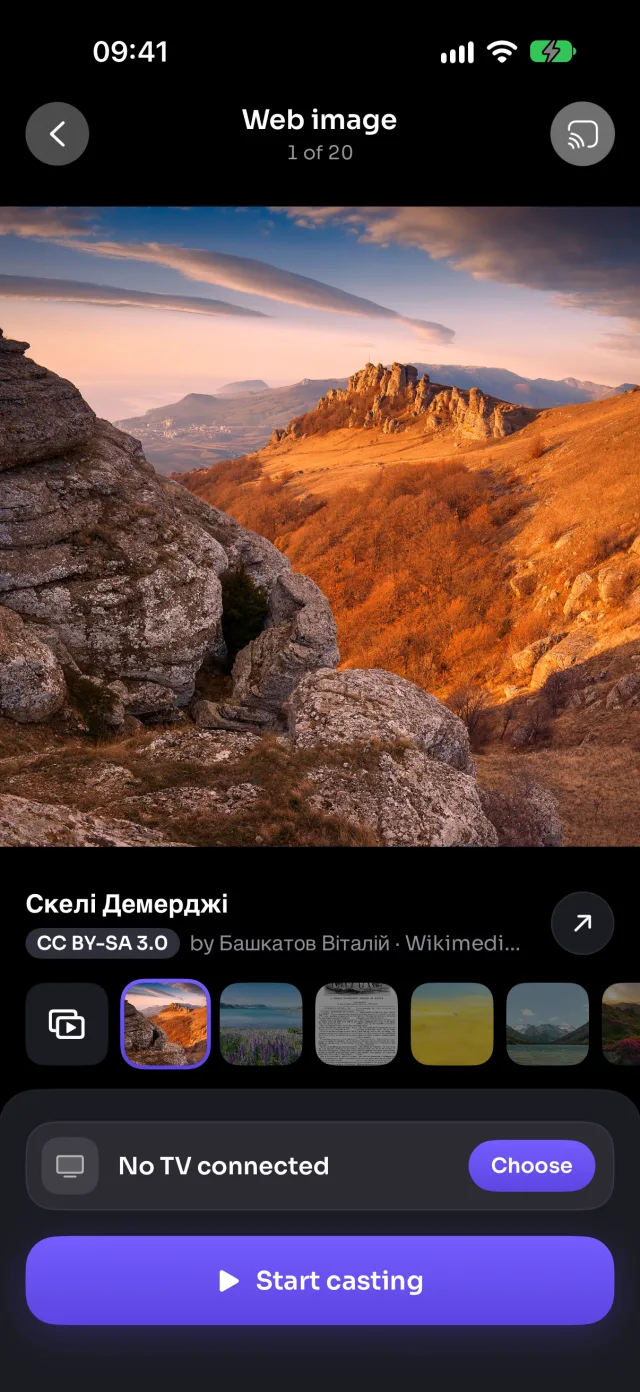
Beautiful free images, full screen
Search free images from Wikimedia Commons (landscapes, space, cities, art) and show them on the TV in its full resolution, or as a slideshow.
- Millions of free, openly licensed images
- Slideshow with your own timing
- The author and licence shown with every image
Works on: Samsung, LG, Roku, Google TV, Android TV, Chromecast, Fire TV, AirPlay, Browser
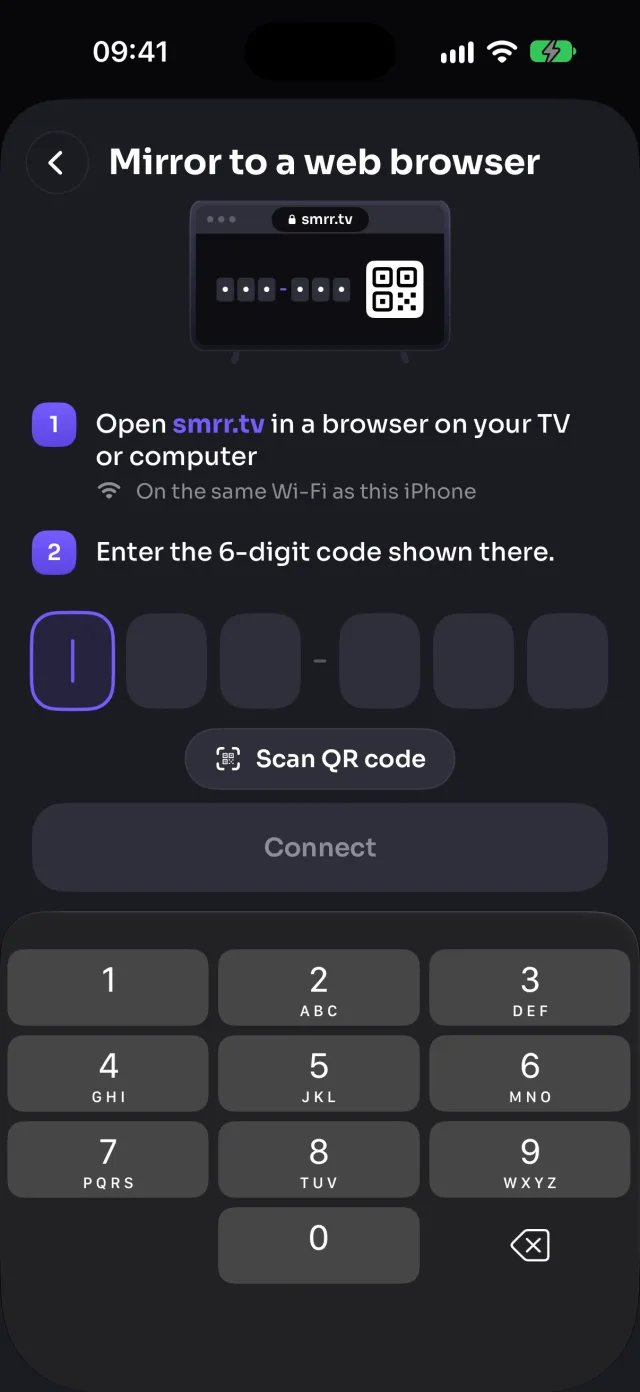
No smart TV app? Use any web browser
Any TV, computer or tablet with a web browser can show your iPhone, even one MirrorGo doesn't find. Open smrr.tv on it, then type the 6-digit code it shows, or scan its QR code.
- Works on smart TVs, PCs, Macs and tablets
- Video goes straight over your Wi-Fi, with sound
- For LG and Samsung TVs nearby, MirrorGo opens the TV's browser for you
On the TV in three taps
No cables, no adapters, nothing to install on the TV.
Join the same Wi-Fi
Put your iPhone on the same Wi-Fi as your TV. No cables, no TV app.
Pick your TV
MirrorGo finds the TVs around you. Tap yours; LG and Samsung TVs ask you to Allow once.
Mirror or cast
Start screen mirroring, or open photos, videos, YouTube, a website or a TV channel.
What works on your TV
MirrorGo finds your TV on the Wi-Fi and dims anything it can't play.
| Feature | Samsung | LG | Roku | Google TV | Android TV | Chromecast | Fire TV | AirPlay | Browser |
|---|---|---|---|---|---|---|---|---|---|
| Screen mirroring | ✓ | ✓ | ✓ | ✓ | ✓ | ✓ | ✓No sound | ✓From Control Center | ✓ |
| Photos & videos | ✓ | ✓ | ✓ | ✓ | ✓ | ✓ | ✓ | ✓ | ✓ |
| Camera | ✓ | ✓ | ✓ | ✓ | ✓ | ✓ | ✓No sound | ✓With Screen Mirroring on | ✓ |
| Web videos | ✓ | ✓ | ✓ | ✓ | ✓ | ✓ | ✓ | ✓ | ✓ |
| Live TV channels (IPTV) | ✓ | ✓ | ✓ | ✓ | ✓ | ✓ | ✓ | ✓ | ✓ |
| YouTube | ✓ | ✓ | ✓ | ✓ | ✓ | ✓ | — | — | ✓ |
| Web images | ✓ | ✓ | ✓ | ✓ | ✓ | ✓ | ✓ | ✓ | ✓ |
Samsung smart TVs from 2016 · LG webOS TVs · Roku TVs and players · Google TV and Android TV (Sony, TCL, Hisense, Philips, Xiaomi…) · Chromecast · Fire TV Stick, Cube and Fire TV smart TVs · Apple TV and AirPlay TVs · any browser through smrr.tv
Your phone, your TV, your Wi-Fi
What you mirror and cast goes straight from your iPhone to your TV. MirrorGo has no account, and keeps your photos and videos off any server.
- No accountNothing to sign up for. Open the app and connect.
- Stays on your Wi-FiPhotos, videos and your screen go straight from your phone to your TV. They aren't uploaded anywhere.
- App sound onlyMirroring sends the sound your apps play, never your microphone.
- Private browsingWeb Videos keeps no history, cookies or cache.
Step by step, for your TV
How to connect, mirror, and cast photos, videos, YouTube and live TV to each kind of TV.
Frequently asked questions
Which TVs does MirrorGo work with?
Most smart TVs and streaming sticks. Nothing needs to be installed on the TV.
- Samsung smart TVs (2016 and newer)
- LG smart TVs (webOS)
- Roku TVs and Roku streaming players
- Google TV, Android TV and Chromecast
- Amazon Fire TV: sticks, Cube and Fire TV smart TVs
- Apple TV and AirPlay TVs
- Any other TV, computer or tablet with a web browser, through smrr.tv
How do I connect to my TV?
Turn the TV on and make sure it's on the same Wi-Fi as your phone. Then:
- Tap Connect your TV on Home, or the TV button at the top of any screen.
- Pick your TV from the list.
- LG and Samsung TVs ask the first time: choose Allow on the TV with its remote.
MirrorGo remembers your TV and connects to it again next time.
How do I mirror my screen?
- Connect your TV, then open Screen Mirroring.
- Tap Start mirroring. iOS asks you to confirm: tap Start Sharing (Start Broadcast before iOS 26).
- After its 3-second countdown, tap outside the box to close it.
- Wait 5–10 seconds for the TV. Don't stop and start again: that starts it over.
To stop, tap Stop mirroring, or the red indicator at the top of your screen.
How do I mirror to a web browser?
Any TV, computer or tablet with a web browser can show your screen, even one MirrorGo doesn't find as a TV.
- In its web browser, open smrr.tv. The page shows a 6-digit code.
- In MirrorGo, open the TV list and tap Browser (smrr.tv).
- Type the code, or scan the QR code on the page.
Keep the page open while you mirror. The phone and the browser need to be on the same Wi-Fi. For an LG or Samsung TV nearby, "Open on…" opens its browser for you.
How do I mirror to an Apple TV or AirPlay TV?
iOS mirrors to AirPlay devices itself, so it starts from Control Center, not from an app:
- Swipe down from the top-right corner to open Control Center.
- Tap Screen Mirroring.
- Choose your Apple TV or AirPlay TV.
To stop, tap Screen Mirroring again, then Stop Mirroring.
Some apps show as a black screen
Netflix, Prime Video, Disney+ and other streaming apps protect their videos, so iOS sends a black picture instead. No mirroring app can get around it.
Use the app's own cast button if it has one. For YouTube, open YouTube in MirrorGo: the TV plays the video itself.
There's no sound on the TV
- Check Sound is on in Screen Mirroring, and the TV isn't muted.
- MirrorGo sends the sound your apps play, never the microphone.
- Fire TV and some older LG TVs show the picture without sound.
- Some apps don't let their sound be recorded, so it stays on the phone.
What can I cast besides my screen?
Photos and videos from your gallery, your camera, videos and images from the web, TV channels (IPTV) and YouTube. Not every TV plays everything: on Home, what your TV can't play is dimmed.
- YouTube doesn't play on Fire TV or over AirPlay.
- Over AirPlay, the camera needs Screen Mirroring on in Control Center.
- Fire TV and AirPlay show the camera without sound.
A TV channel doesn't play
Channels are free public streams. At any moment some are offline, or only play in their own country. If one doesn't start, try another.
Channels keep playing when you leave the list or lock your phone. Stop them from the bar at the bottom of Home.
Why does MirrorGo need Local Network access?
MirrorGo talks to your TV over your Wi-Fi, and iOS only allows that with Local Network access. Without it, no TV can be found or cast to. It's only used for devices on your own network.
- Tap Open Settings
- Turn on Local Network
- Come back to MirrorGo
Put your iPhone on the TV
Screen mirroring, photos, videos, YouTube, web videos and thousands of live channels. One app, any TV.
Coming soon to the App Store