 MirrorGo
Mirror your iPhone to a Hisense TV
Hisense TVs run VIDAA, Google TV / Android TV, Roku TV or Fire TV, depending on the model and the country. Google TV, Android TV, Roku TV and Fire TV models show up in MirrorGo's TV list. On a VIDAA model, open smrr.tv in the TV's web browser and mirror there with the code it shows.
How to do it
- Find out which system your Hisense TV runs (Google TV, Android TV, Roku, Fire TV): its logo is on the start screen and the remote.
- Put your iPhone on the same Wi-Fi as the TV.
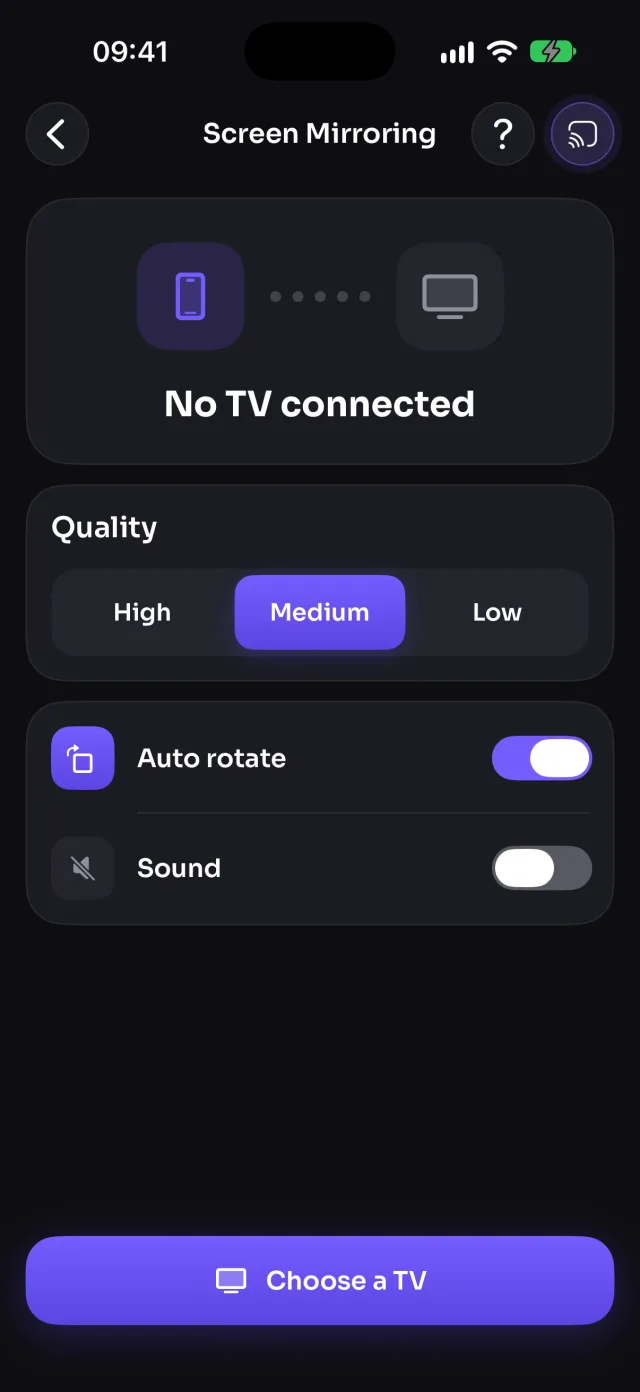
- Open MirrorGo, tap Connect your TV and pick your TV.
- Open Screen Mirroring and tap Start mirroring, then Start Sharing (Start Broadcast before iOS 26).
Coming soon to the App Store
Hisense TVs, by system
Google TVMirror your iPhone to Google TVAndroid TVMirror your iPhone to an Android TVRokuMirror your iPhone to a RokuFire TVMirror your iPhone to a Fire TVAny web browserAny model, through smrr.tv
Guides
- How to connect your iPhone to a Google TV
- How to cast photos and videos from your iPhone to a Google TV
- How to watch free live TV channels on a Google TV
- How to connect your iPhone to an Android TV
- How to cast photos and videos from your iPhone to an Android TV
- How to watch free live TV channels on an Android TV
- How to connect your iPhone to a Roku
- How to cast photos and videos from your iPhone to a Roku
- How to watch free live TV channels on a Roku
- How to connect your iPhone to a Fire TV
- How to cast photos and videos from your iPhone to a Fire TV
- How to watch free live TV channels on a Fire TV
- How to connect your iPhone to a web browser
- How to cast photos and videos from your iPhone to a web browser
- How to watch free live TV channels on a web browser