 MirrorGo
How to connect your iPhone to a Roku
Connecting your iPhone to a Roku with MirrorGo takes a few seconds: both on the same Wi-Fi, pick the TV, done. Nothing to install on the TV, and MirrorGo remembers it for next time.
Step by step
- Turn on your Roku TV or Roku player and put your iPhone on the same Wi-Fi.
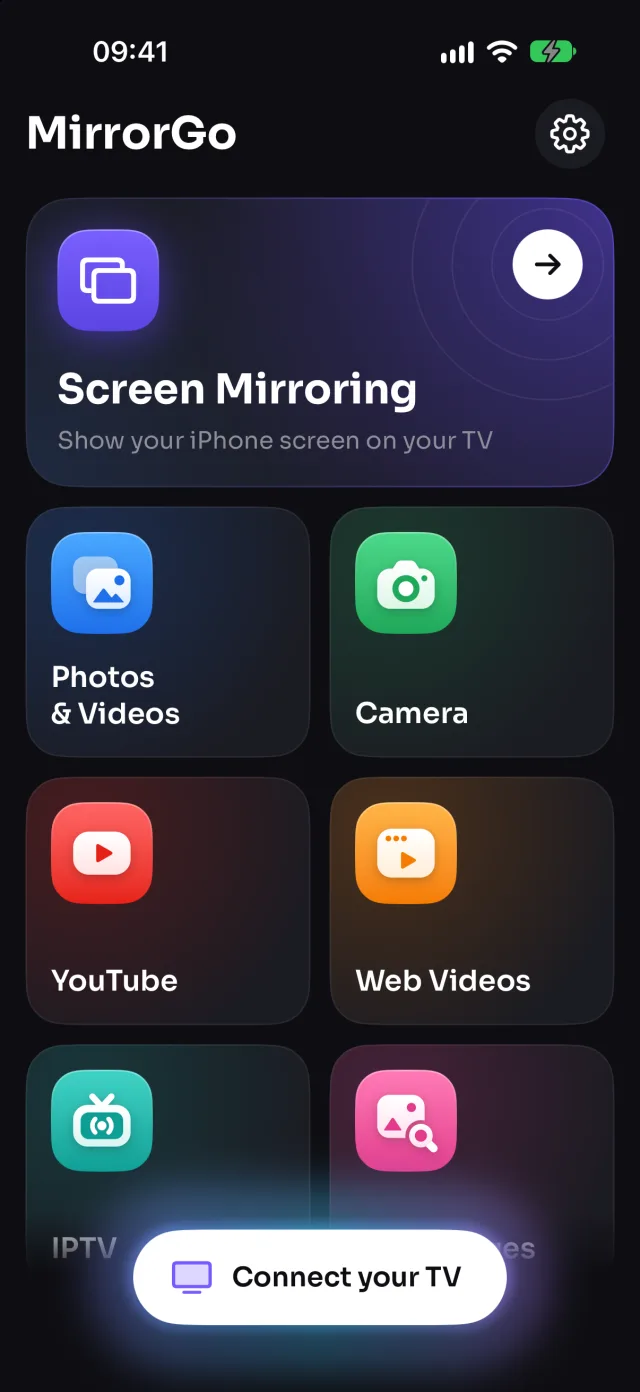
- Open MirrorGo and tap Connect your TV. Your Roku shows up by its name.
- Tap it to connect. No code to type.
- Connected. MirrorGo remembers your Roku for next time.
On Roku
MirrorGo works with Roku TVs (TCL, Hisense, Sharp, Philips and other Roku TV models) and Roku streaming players: the Roku Express, Streaming Stick and Ultra.
Roku not listed? On the Roku, open Settings › System › Advanced system settings › Control by mobile apps and make sure network access isn't disabled.
Good to know
- The phone and the TV must be on the same Wi-Fi network, not a guest network.
- MirrorGo needs Local Network access (iOS asks the first time). If you said no: Settings › MirrorGo › Local Network.
- Turn off any VPN on the phone while you cast.
- No TV found at all? Any TV with a web browser works through smrr.tv.
Coming soon to the App Store
More for Roku
Screen mirroringMirror your iPhone to a RokuPhotos & videosHow to Cast Photos and Videos from iPhone to a RokuWeb imagesHow to Show Free Web Images on a Roku from an iPhoneLive TV (IPTV)How to Watch Free Live TV Channels (IPTV) on a Roku with an iPhoneYouTubeHow to Cast YouTube from iPhone to a RokuWeb videosHow to Cast Videos from Any Website to a Roku with an iPhoneCameraHow to Show Your iPhone Camera Live on a Roku
Connect on other TVs
Samsung TVHow to Connect an iPhone to a Samsung TVLG TVHow to Connect an iPhone to an LG TVGoogle TVHow to Connect an iPhone to a Google TVAndroid TVHow to Connect an iPhone to an Android TVChromecastHow to Connect an iPhone to a ChromecastFire TVHow to Connect an iPhone to a Fire TVApple TV & AirPlayHow to Connect an iPhone to an Apple TVAny web browserHow to Connect an iPhone to a Web Browser