 MirrorGo
Mirror your iPhone to Google TV
MirrorGo shows your iPhone screen on Google TV: TVs from Sony, TCL, Hisense, Philips and others, the Chromecast with Google TV and the Google TV Streamer. Nothing to install on the TV.
How to do it
- Turn on the TV and put your iPhone on the same Wi-Fi.
- Open MirrorGo, tap Connect your TV and pick your Google TV.
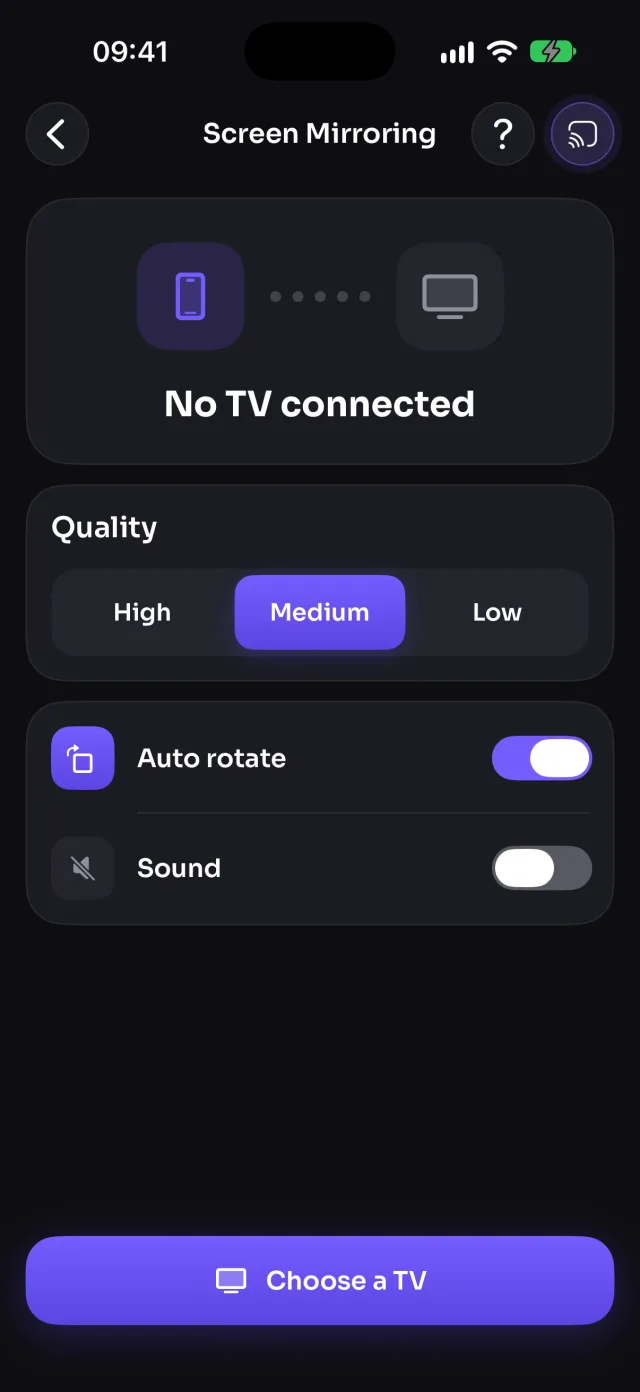
- Open Screen Mirroring, tap Start mirroring, then Start Sharing (Start Broadcast before iOS 26).
- Your screen shows on the TV in a few seconds.
What you can do on Google TV
- Screen mirroringWorksWith sound
- Photos & videosWorks
- CameraWorksWith sound
- YouTubeWorksPlayed by the TV, from where you were
- Web videosWorks
- Live TV channelsWorksKeep playing without the phone
- Web imagesWorks
Which TVs run Google TV?
Google TV is on most recent Sony BRAVIA, TCL, Hisense and Philips TVs, and on Google's own Chromecast with Google TV and Google TV Streamer. It has Chromecast built in, which is how MirrorGo finds it on your Wi-Fi.
If your TV isn't listed
Make sure the phone and the TV are on the same Wi-Fi (not a guest network), that MirrorGo has Local Network access in Settings, and that no VPN is on. Still missing? Open smrr.tv in the TV's browser and mirror there.
Questions
Can I mirror my whole iPhone screen to Google TV?
Yes. Google TV doesn't support AirPlay on most models, but MirrorGo mirrors your whole screen, with sound, through its built-in Chromecast.
Do I need the Google Home app?
No. The TV only needs to be set up and on your Wi-Fi. MirrorGo connects to it directly.