 MirrorGo
Mirror your iPhone to a Chromecast
MirrorGo shows your iPhone screen through a Chromecast, and on TVs with Chromecast built in such as VIZIO SmartCast. Nothing to install on the TV.
How to do it
- Turn on the TV and put your iPhone on the same Wi-Fi as the Chromecast.
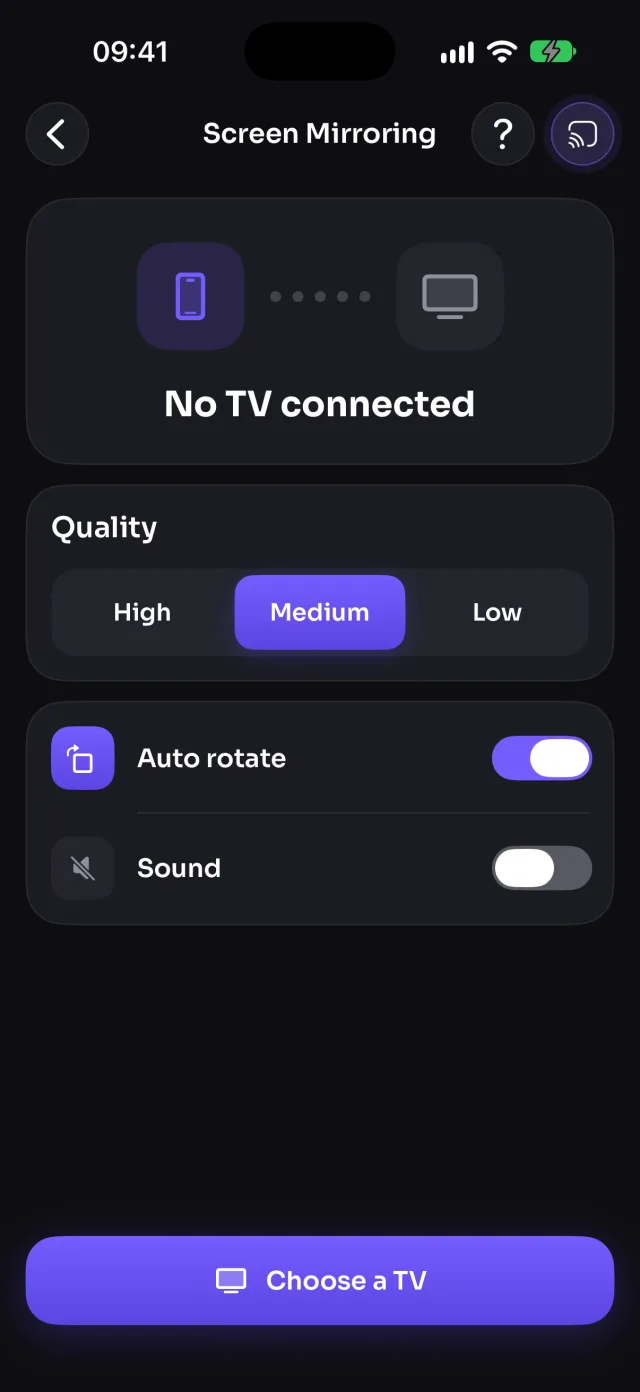
- Open MirrorGo, tap Connect your TV and pick your Chromecast.
- Open Screen Mirroring, tap Start mirroring, then Start Sharing (Start Broadcast before iOS 26).
- Your screen shows on the TV in a few seconds.
What you can do on Chromecast
- Screen mirroringWorksWith sound
- Photos & videosWorks
- CameraWorksWith sound
- YouTubeWorksPlayed by the Chromecast, from where you were
- Web videosWorks
- Live TV channelsWorksKeep playing without the phone
- Web imagesWorks
Which devices work?
Every Chromecast, with or without Google TV, and TVs and speakers-with-screens that have Chromecast built in, such as VIZIO SmartCast TVs. MirrorGo finds them on your Wi-Fi the way Google's own apps do.
If your Chromecast isn't listed
Make sure the phone and the Chromecast are on the same Wi-Fi (not a guest network), that MirrorGo has Local Network access in Settings, and that no VPN is on. Still missing? Open smrr.tv in a browser on any screen and mirror there.
Questions
Can I mirror my whole iPhone screen to a Chromecast?
Yes. iPhones can't do it on their own, since Chromecast doesn't support AirPlay, but MirrorGo mirrors your whole screen, with sound, to a Chromecast.
Do I need the Google Home app?
No. Your Chromecast only needs to be set up and on your Wi-Fi. MirrorGo connects to it directly.