 MirrorGo
Mirror your iPhone to a Roku
MirrorGo shows your iPhone screen on Roku TVs (TCL, Hisense, Sharp and other Roku TV models) and Roku streaming players, over your Wi-Fi.
How to do it
- Turn on the Roku and put your iPhone on the same Wi-Fi.
- Open MirrorGo, tap Connect your TV and pick your Roku.
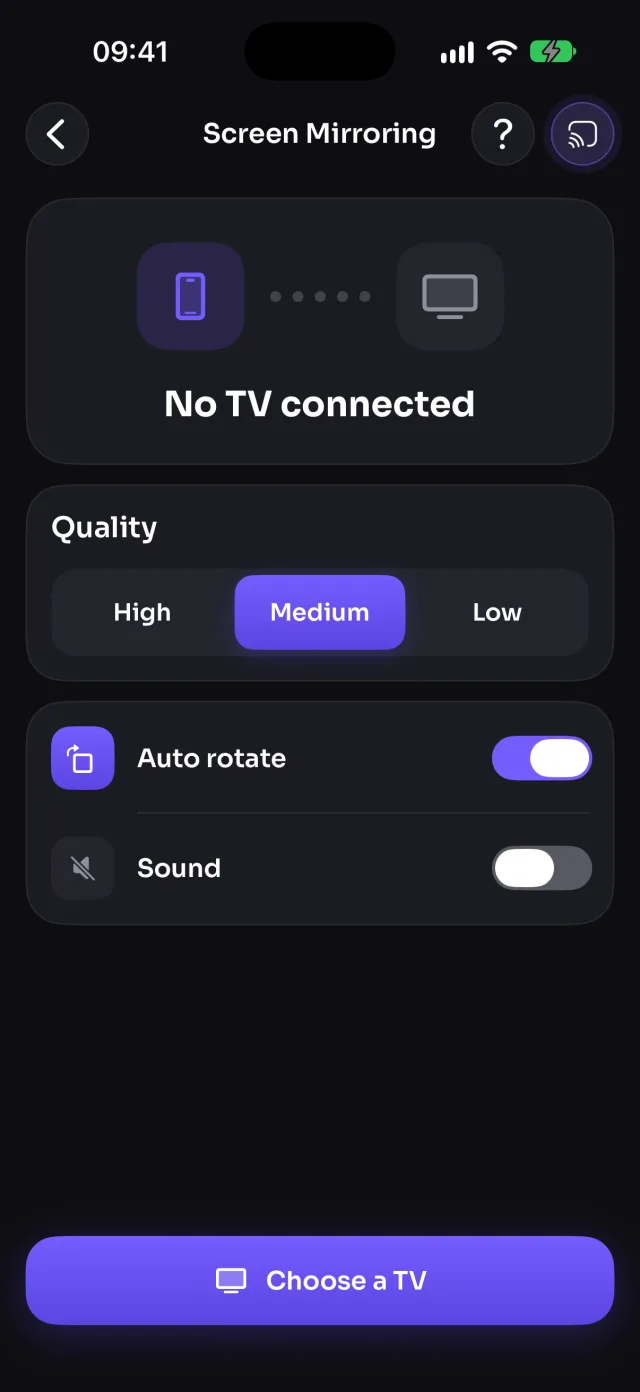
- Open Screen Mirroring, tap Start mirroring, then Start Sharing (Start Broadcast before iOS 26).
- Your screen shows on the TV in a few seconds.
What you can do on Roku
- Screen mirroringWorksWith sound
- Photos & videosWorks
- CameraWorks
- YouTubeWorks
- Web videosWorks
- Live TV channelsWorks
- Web imagesWorks
Which Rokus work?
Roku TVs from TCL, Hisense, Sharp, Philips, Westinghouse and others, and Roku streaming players: the Roku Express, Streaming Stick and Ultra. MirrorGo finds them on your Wi-Fi.
If your Roku isn't listed
Make sure the phone and the Roku are on the same Wi-Fi (not a guest network), that MirrorGo has Local Network access in Settings, and that no VPN is on. On the Roku, check Settings › System › Advanced system settings › Control by mobile apps is set to allow access.
Questions
Do I need to install anything on my Roku?
No. You only install MirrorGo on your iPhone; the Roku just needs to be on and on the same Wi-Fi.
Can I mirror my iPhone to a Roku without AirPlay?
Yes. MirrorGo doesn't use AirPlay, so it works with Rokus that don't support it.