 MirrorGo
How to cast YouTube from your iPhone to a Roku
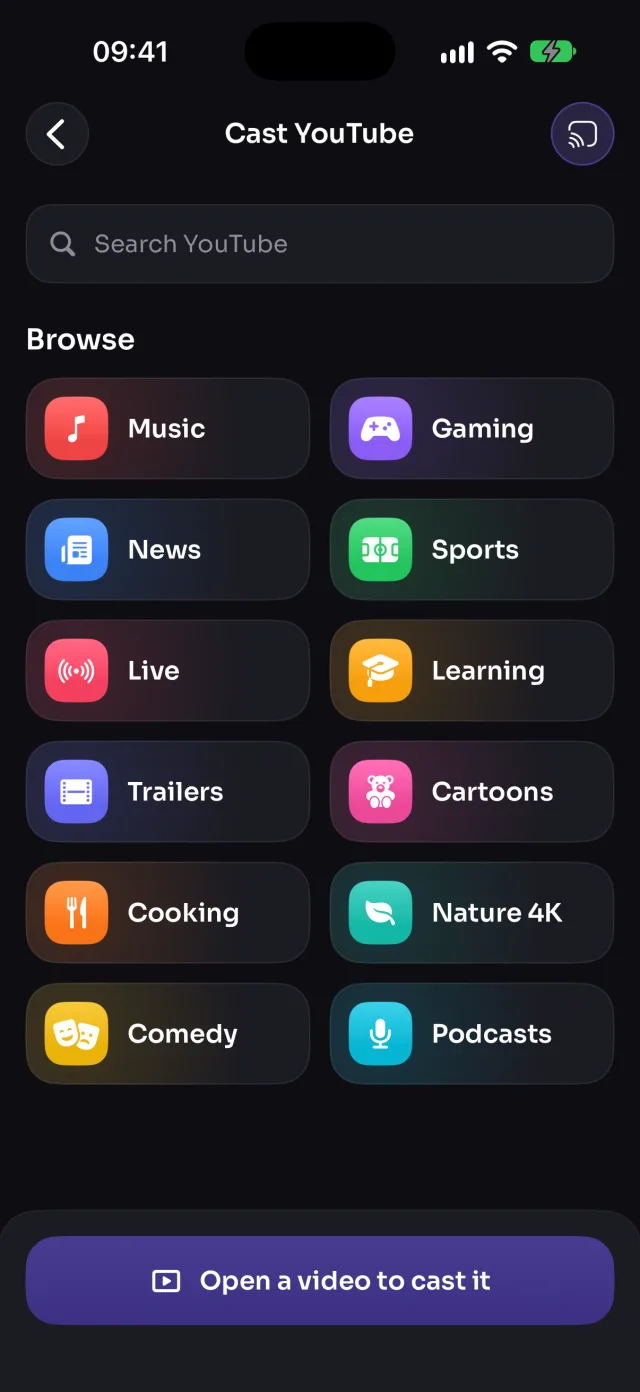
Find a YouTube video in MirrorGo and tap Cast to TV: a Roku plays it itself, in full quality, starting from where you were, while your phone stays free.
Step by step
- Connect MirrorGo to a Roku.
- On MirrorGo's Home, tap YouTube.
- Pick a topic (Music, News, Sports, Live…) or search, and open a video.
- Tap Cast to TV. The video starts on the TV from the point you were at.
On Roku
The video plays on the Roku from the point you were watching.
Good to know
- The video keeps playing when you leave the screen. Tap Stop to close it on the TV.
- Casting the video is better than mirroring it: the TV plays it in full quality with the sound in sync.
Coming soon to the App Store
More for Roku
Screen mirroringMirror your iPhone to a RokuConnectHow to Connect an iPhone to a RokuPhotos & videosHow to Cast Photos and Videos from iPhone to a RokuWeb imagesHow to Show Free Web Images on a Roku from an iPhoneLive TV (IPTV)How to Watch Free Live TV Channels (IPTV) on a Roku with an iPhoneWeb videosHow to Cast Videos from Any Website to a Roku with an iPhoneCameraHow to Show Your iPhone Camera Live on a Roku
YouTube on other TVs
Samsung TVHow to Cast YouTube from iPhone to a Samsung TVLG TVHow to Cast YouTube from iPhone to an LG TVGoogle TVHow to Cast YouTube from iPhone to a Google TVAndroid TVHow to Cast YouTube from iPhone to an Android TVChromecastHow to Cast YouTube from iPhone to a ChromecastAny web browserHow to Cast YouTube from iPhone to a Web Browser