 MirrorGo
Mirror your iPhone to a VIZIO TV
VIZIO SmartCast TVs have Chromecast built in, and many also support AirPlay. MirrorGo finds a SmartCast TV through its built-in Chromecast, so you can mirror your screen and cast photos, videos, YouTube and live TV to it.
How to do it
- Find out which system your VIZIO TV runs (Chromecast, Apple TV & AirPlay): its logo is on the start screen and the remote.
- Put your iPhone on the same Wi-Fi as the TV.
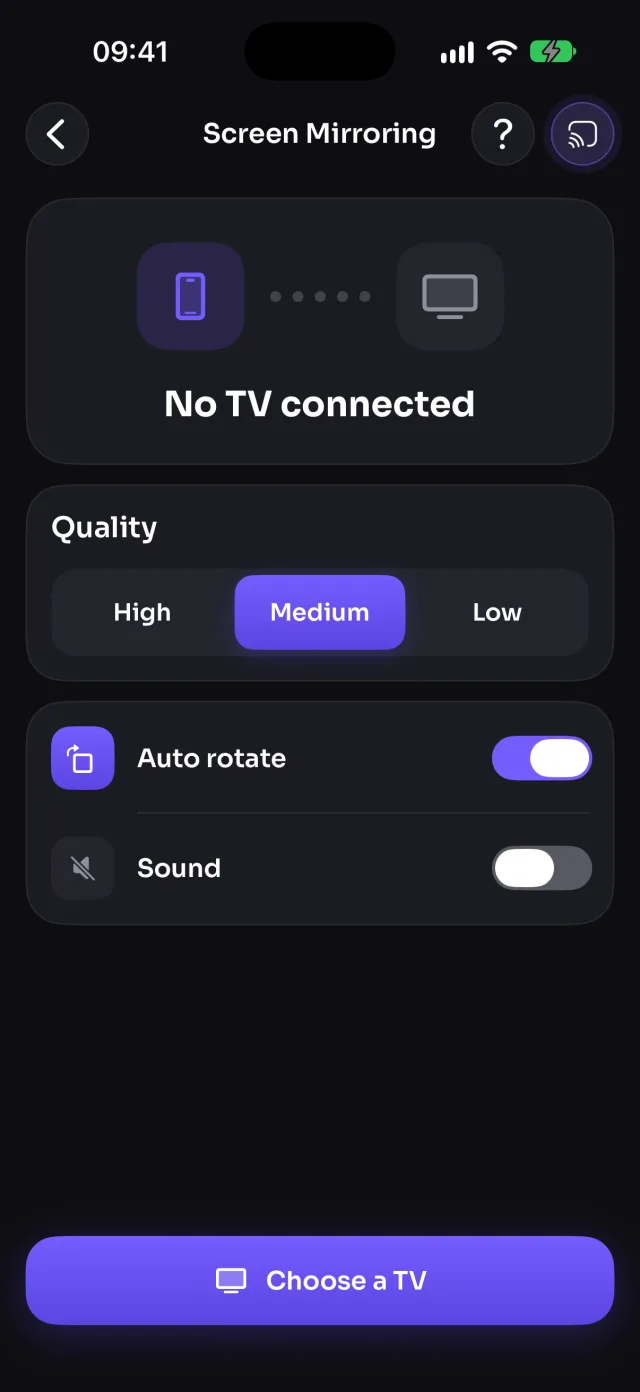
- Open MirrorGo, tap Connect your TV and pick your TV.
- Open Screen Mirroring and tap Start mirroring, then Start Sharing (Start Broadcast before iOS 26).
Coming soon to the App Store
VIZIO TVs, by system
ChromecastMirror your iPhone to a ChromecastApple TV & AirPlayMirror and cast your iPhone to Apple TV and AirPlay TVsAny web browserAny model, through smrr.tv
Guides
- How to connect your iPhone to a Chromecast
- How to cast photos and videos from your iPhone to a Chromecast
- How to watch free live TV channels on a Chromecast
- How to connect your iPhone to an Apple TV
- How to cast photos and videos from your iPhone to an Apple TV
- How to watch free live TV channels on an Apple TV
- How to connect your iPhone to a web browser
- How to cast photos and videos from your iPhone to a web browser
- How to watch free live TV channels on a web browser