 MirrorGo
Mirror and cast your iPhone to Apple TV and AirPlay TVs
iPhones mirror to an Apple TV or an AirPlay TV by themselves, from Control Center. MirrorGo adds what iOS can't: live TV channels, videos from websites and web images, played over AirPlay.
How to do it
- Put your iPhone on the same Wi-Fi as the Apple TV or AirPlay TV.
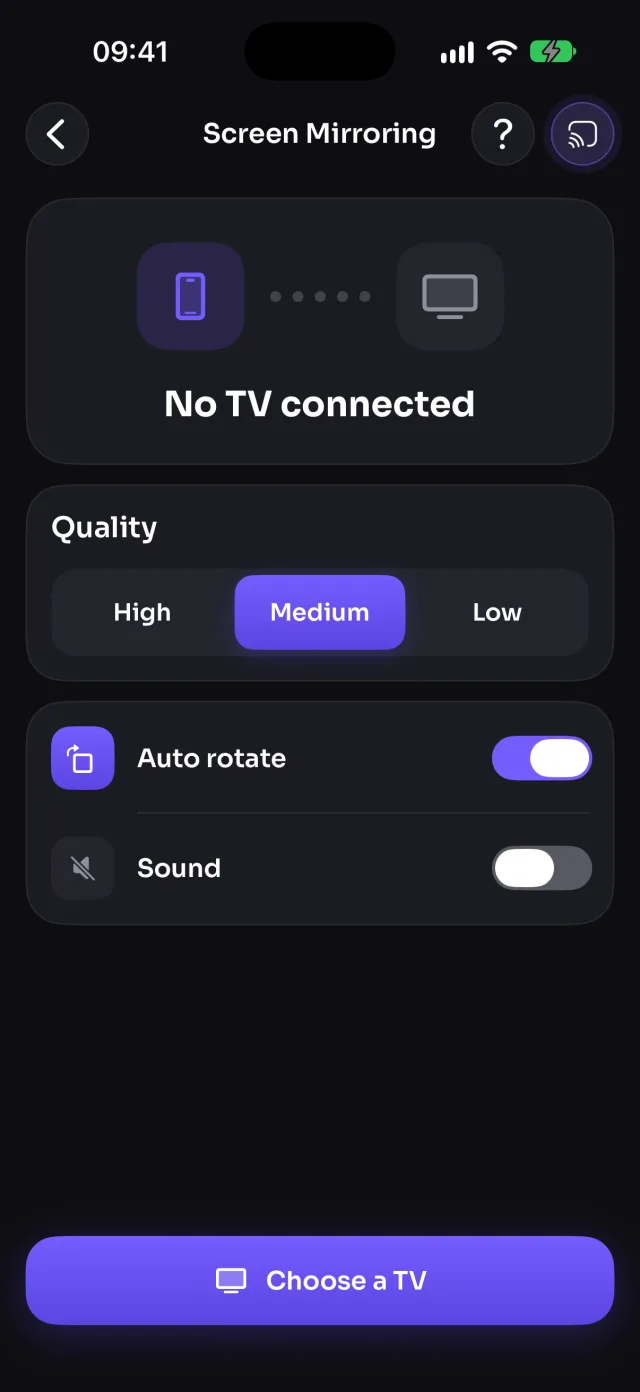
- To mirror your screen: open Control Center, tap Screen Mirroring and choose the TV.
- To cast: open MirrorGo, tap Connect your TV, then Choose an AirPlay device, and pick the TV.
- Open Photos & Videos, Web Videos or IPTV in MirrorGo and play: it goes to the TV over AirPlay.
What you can do on Apple TV & AirPlay
- Screen mirroringPartlyFrom Control Center (iOS itself)
- Photos & videosWorksAs AirPlay video
- CameraPartlyWith Screen Mirroring on, no sound
- YouTubeNot on this TVUse the YouTube app's own AirPlay button
- Web videosWorks
- Live TV channelsWorks
- Web imagesWorks
Which devices work?
Apple TV HD and Apple TV 4K, Macs, and TVs with AirPlay built in: many Samsung, LG, Sony, VIZIO, TCL, Philips and Roku models from 2018 on.
Why mirroring starts from Control Center
Apple doesn't let apps start AirPlay screen mirroring; only Control Center can. MirrorGo shows the steps, and once mirroring is on, its camera can show full screen on the TV too.
Questions
Can I stop AirPlay from MirrorGo?
Open MirrorGo's TV list and tap the AirPlay card, then pick iPhone in the menu: that ends AirPlay. To stop screen mirroring, use Control Center › Screen Mirroring › Stop Mirroring.
Does MirrorGo need an Apple TV?
No. An Apple TV is one option; MirrorGo also works with Samsung, LG, Roku, Google TV, Fire TV and any web browser, without AirPlay.