 MirrorGo
Mirror your iPhone to a Fire TV
MirrorGo shows your iPhone on Fire TV Sticks, the Fire TV Cube and Fire TV smart TVs, using the player built into every Fire TV. Nothing to install on the Fire TV.
How to do it
- Turn on the Fire TV and put your iPhone on the same Wi-Fi.
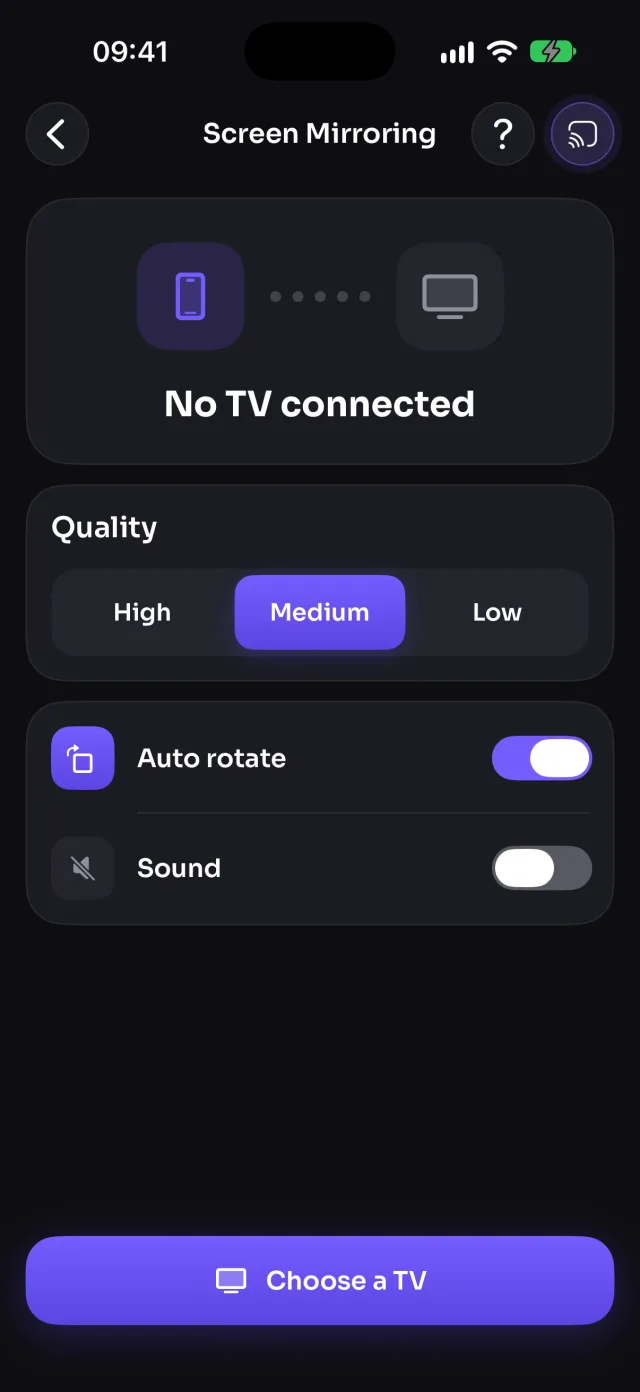
- Open MirrorGo, tap Connect your TV and pick your Fire TV.
- Open Screen Mirroring, tap Start mirroring, then Start Sharing (Start Broadcast before iOS 26).
- Your screen shows on the TV. To stop, tap Stop mirroring, or press Home on the Fire TV remote.
Coming soon to the App Store
What you can do on Fire TV
- Screen mirroringPartlyPicture only, no sound
- Photos & videosWorksVideos with sound
- CameraPartlyPicture only, no sound
- YouTubeNot on this TVUse the YouTube app on the Fire TV
- Web videosWorksWith sound
- Live TV channelsWorksWith sound; keep playing without the phone
- Web imagesWorks
Which Fire TVs work?
Fire TV Sticks (including the 4K and 4K Max), the Fire TV Cube, and smart TVs with Fire TV built in (Amazon, Toshiba, Insignia and others). MirrorGo finds them on your Wi-Fi.
Watching videos with sound
Mirroring a Fire TV shows the picture without sound. To watch a video with sound, cast it instead: photos and videos from your gallery, web videos and live TV channels all play with sound.
Questions
Do I need to install an app on my Fire TV?
No. Every Fire TV has a media player built in, and MirrorGo uses it. You only install MirrorGo on your iPhone.
Can I mirror an iPhone to a Fire TV Stick with sound?
Screen mirroring shows the picture only. Videos you cast (gallery, web videos, live TV channels) play with sound.
More guides for Fire TV
Screen mirroringMirror your iPhone to a Fire TVConnectHow to Connect an iPhone to a Fire TVPhotos & videosHow to Cast Photos and Videos from iPhone to a Fire TVWeb imagesHow to Show Free Web Images on a Fire TV from an iPhoneLive TV (IPTV)How to Watch Free Live TV Channels (IPTV) on a Fire TV with an iPhoneWeb videosHow to Cast Videos from Any Website to a Fire TV with an iPhoneCameraHow to Show Your iPhone Camera Live on a Fire TV
Other TVs
Samsung TVMirror your iPhone to a Samsung TVLG TVMirror your iPhone to an LG TVRokuMirror your iPhone to a RokuGoogle TVMirror your iPhone to Google TVAndroid TVMirror your iPhone to an Android TVChromecastMirror your iPhone to a ChromecastApple TV & AirPlayMirror and cast your iPhone to Apple TV and AirPlay TVsAny web browserMirror your iPhone to any screen with a web browser