 MirrorGo
How to cast photos and videos from your iPhone to a Fire TV
With MirrorGo you can show the photos and videos from your iPhone's library on a Fire TV, in full quality, and swipe through them on the phone while the TV follows.
Step by step
- Connect MirrorGo to a Fire TV.
- On MirrorGo's Home, tap Photos & Videos and allow access to your photos.
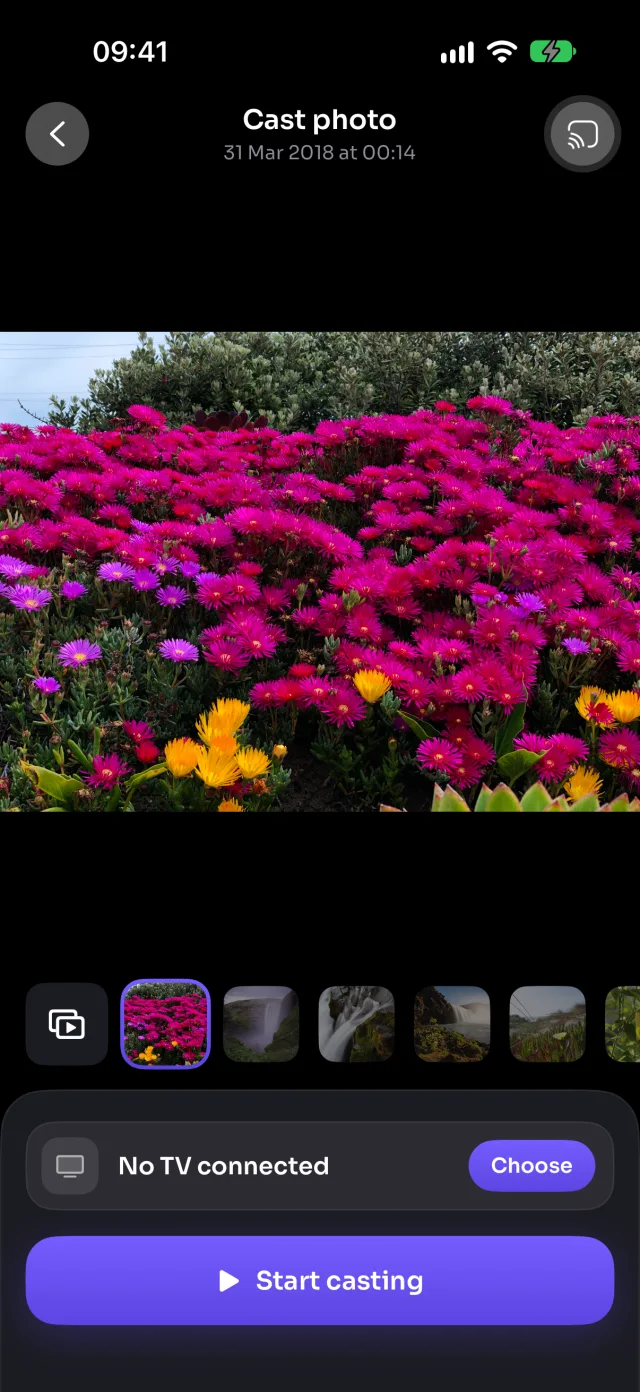
- Pick Videos or Photos at the top, then tap the one you want.
- Tap Start casting. It shows on the TV in a moment.
- Swipe through the strip under the picture: the TV follows. Videos play, pause and seek from the phone.
On Fire TV
Photos go as pictures and videos as MP4 files served from your iPhone over your Wi-Fi. Fire TV can't play HEVC, the iPhone's default video format, so MirrorGo converts those videos to H.264 first; long videos take a moment.
Good to know
- Auto play (the button at the start of the strip) turns it into a slideshow: 5 to 30 seconds a photo, videos to the end, and Repeat to start over.
- With limited photo access, only the photos you picked show up. To show them all: Settings › MirrorGo › Photos › Full Access.
- Your photos and videos go from your iPhone to the TV over your Wi-Fi. They aren't uploaded anywhere.
- Casting stops when you close the screen.
Coming soon to the App Store
More for Fire TV
Screen mirroringMirror your iPhone to a Fire TVConnectHow to Connect an iPhone to a Fire TVWeb imagesHow to Show Free Web Images on a Fire TV from an iPhoneLive TV (IPTV)How to Watch Free Live TV Channels (IPTV) on a Fire TV with an iPhoneWeb videosHow to Cast Videos from Any Website to a Fire TV with an iPhoneCameraHow to Show Your iPhone Camera Live on a Fire TV
Photos & videos on other TVs
Samsung TVHow to Cast Photos and Videos from iPhone to a Samsung TVLG TVHow to Cast Photos and Videos from iPhone to an LG TVRokuHow to Cast Photos and Videos from iPhone to a RokuGoogle TVHow to Cast Photos and Videos from iPhone to a Google TVAndroid TVHow to Cast Photos and Videos from iPhone to an Android TVChromecastHow to Cast Photos and Videos from iPhone to a ChromecastApple TV & AirPlayHow to Cast Photos and Videos from iPhone to an Apple TVAny web browserHow to Cast Photos and Videos from iPhone to a Web Browser