 MirrorGo
How to cast photos and videos from your iPhone to an LG TV
With MirrorGo you can show the photos and videos from your iPhone's library on an LG TV, in full quality, and swipe through them on the phone while the TV follows.
Step by step
- Connect MirrorGo to an LG TV.
- On MirrorGo's Home, tap Photos & Videos and allow access to your photos.
- Pick Videos or Photos at the top, then tap the one you want.
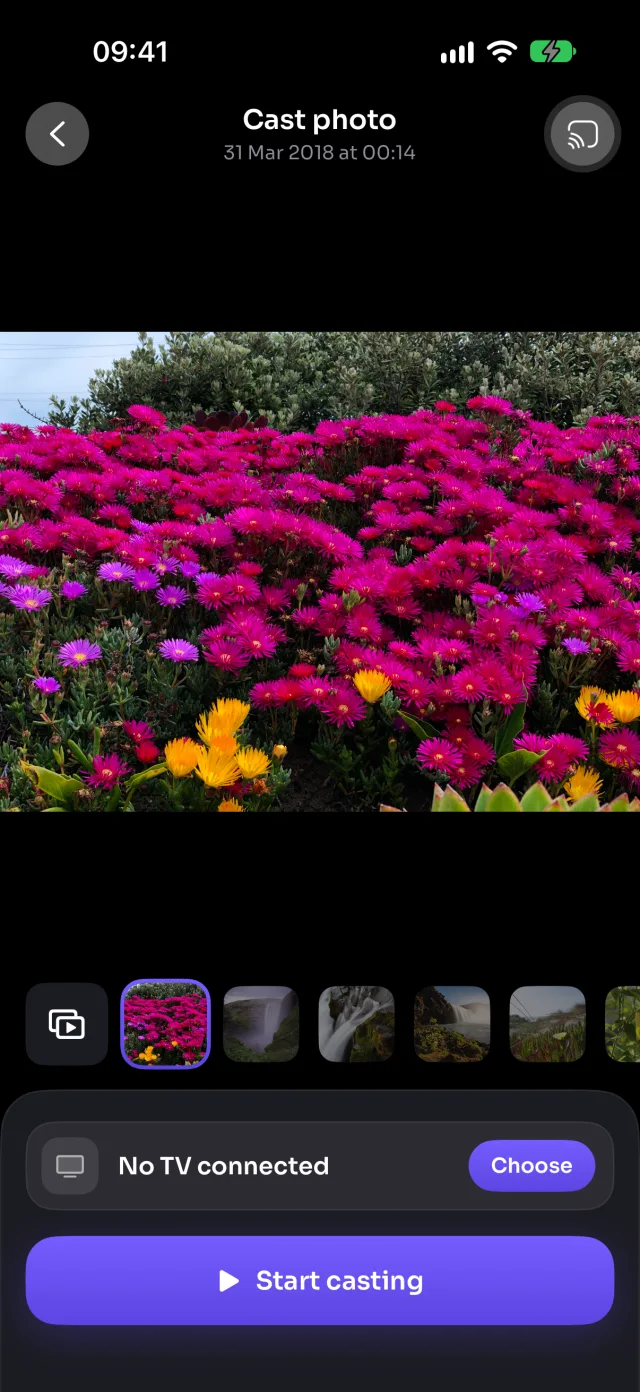
- Tap Start casting. It shows on the TV in a moment.
- Swipe through the strip under the picture: the TV follows. Videos play, pause and seek from the phone.
On LG TV
On LG, MirrorGo first plays them in the TV's web browser, which it opens for you and which plays the most kinds of video. A few seconds in, it asks "Is it playing on your TV?": tap No and it closes the browser and uses the TV's own player instead. Either way the photos and videos go over your Wi-Fi, not the internet.
Good to know
- Auto play (the button at the start of the strip) turns it into a slideshow: 5 to 30 seconds a photo, videos to the end, and Repeat to start over.
- With limited photo access, only the photos you picked show up. To show them all: Settings › MirrorGo › Photos › Full Access.
- Your photos and videos go from your iPhone to the TV over your Wi-Fi. They aren't uploaded anywhere.
- Casting stops when you close the screen.
Coming soon to the App Store
More for LG TV
Screen mirroringMirror your iPhone to an LG TVConnectHow to Connect an iPhone to an LG TVWeb imagesHow to Show Free Web Images on an LG TV from an iPhoneLive TV (IPTV)How to Watch Free Live TV Channels (IPTV) on an LG TV with an iPhoneYouTubeHow to Cast YouTube from iPhone to an LG TVWeb videosHow to Cast Videos from Any Website to an LG TV with an iPhoneCameraHow to Show Your iPhone Camera Live on an LG TV
Photos & videos on other TVs
Samsung TVHow to Cast Photos and Videos from iPhone to a Samsung TVRokuHow to Cast Photos and Videos from iPhone to a RokuGoogle TVHow to Cast Photos and Videos from iPhone to a Google TVAndroid TVHow to Cast Photos and Videos from iPhone to an Android TVChromecastHow to Cast Photos and Videos from iPhone to a ChromecastFire TVHow to Cast Photos and Videos from iPhone to a Fire TVApple TV & AirPlayHow to Cast Photos and Videos from iPhone to an Apple TVAny web browserHow to Cast Photos and Videos from iPhone to a Web Browser