 MirrorGo
How to watch free live TV channels on an LG TV
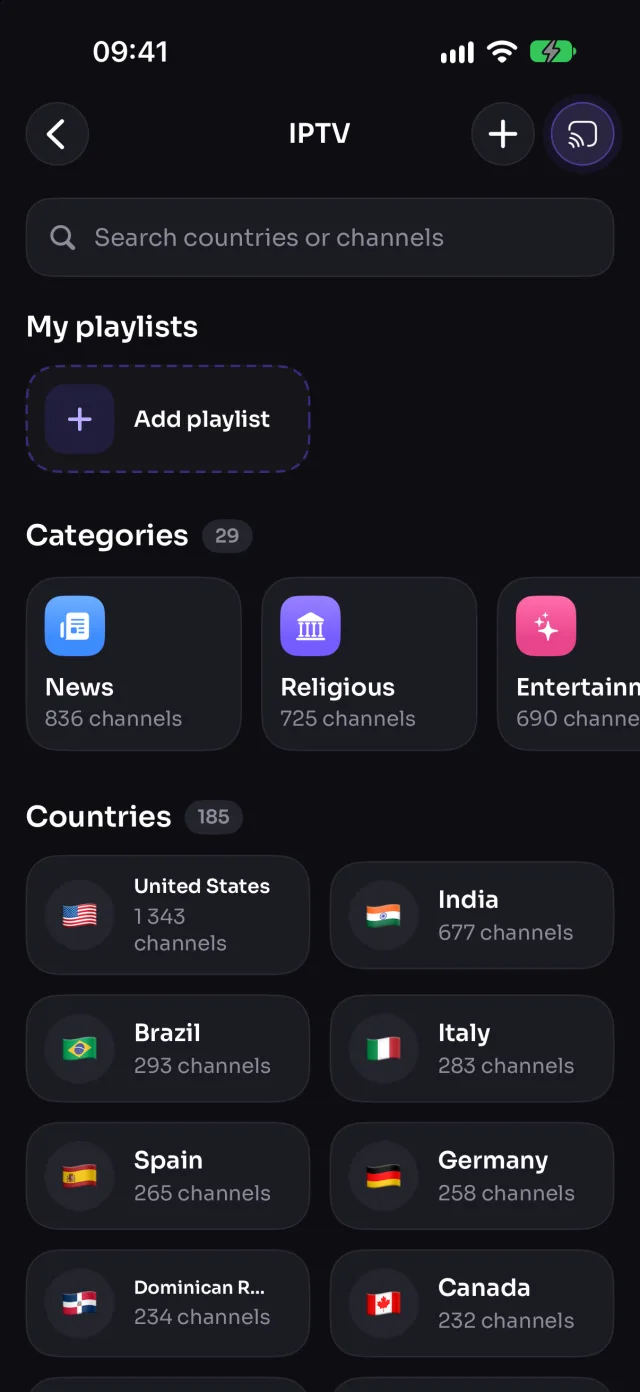
MirrorGo lists more than 9,000 free, public live TV channels from over 180 countries (news, sports, movies, music, kids and more) and plays them on an LG TV with one tap. You can add your own M3U playlists too.
Step by step
- Connect MirrorGo to an LG TV.
- On MirrorGo's Home, tap IPTV.
- Pick a country or a category, or search for a channel by name.
- Tap a channel: it starts on the TV. Tap another to switch.
- Tap ☆ to keep a channel in Favorites; tap + to add an M3U playlist link.
On LG TV
The channel plays in the LG TV's web browser, which handles what LG's own player doesn't: ad breaks in free channels, separate audio and encrypted streams. If it doesn't play, tap No when MirrorGo asks "Is it playing on your TV?" and it tries the TV's player.
Good to know
- The channel keeps playing when you leave the list or lock your phone. Stop it from the bar at the bottom of Home.
- Channels are free public streams from the iptv-org list: at any moment some are offline or only play in their own country. If one doesn't start, try another.
- Your own playlist must be an HTTPS link to an M3U file (or to a single HLS stream).
Coming soon to the App Store
More for LG TV
Screen mirroringMirror your iPhone to an LG TVConnectHow to Connect an iPhone to an LG TVPhotos & videosHow to Cast Photos and Videos from iPhone to an LG TVWeb imagesHow to Show Free Web Images on an LG TV from an iPhoneYouTubeHow to Cast YouTube from iPhone to an LG TVWeb videosHow to Cast Videos from Any Website to an LG TV with an iPhoneCameraHow to Show Your iPhone Camera Live on an LG TV
Live TV (IPTV) on other TVs
Samsung TVHow to Watch Free Live TV Channels (IPTV) on a Samsung TV with an iPhoneRokuHow to Watch Free Live TV Channels (IPTV) on a Roku with an iPhoneGoogle TVHow to Watch Free Live TV Channels (IPTV) on a Google TV with an iPhoneAndroid TVHow to Watch Free Live TV Channels (IPTV) on an Android TV with an iPhoneChromecastHow to Watch Free Live TV Channels (IPTV) on a Chromecast with an iPhoneFire TVHow to Watch Free Live TV Channels (IPTV) on a Fire TV with an iPhoneApple TV & AirPlayHow to Watch Free Live TV Channels (IPTV) on an Apple TV with an iPhoneAny web browserHow to Watch Free Live TV Channels (IPTV) on a Web Browser with an iPhone