 MirrorGo
Mirror your iPhone to any screen with a web browser
Any TV, computer or tablet with a web browser can show your iPhone, even a TV MirrorGo doesn't find. Open smrr.tv there, type its code in MirrorGo, and your screen is on it, with sound.
How to do it
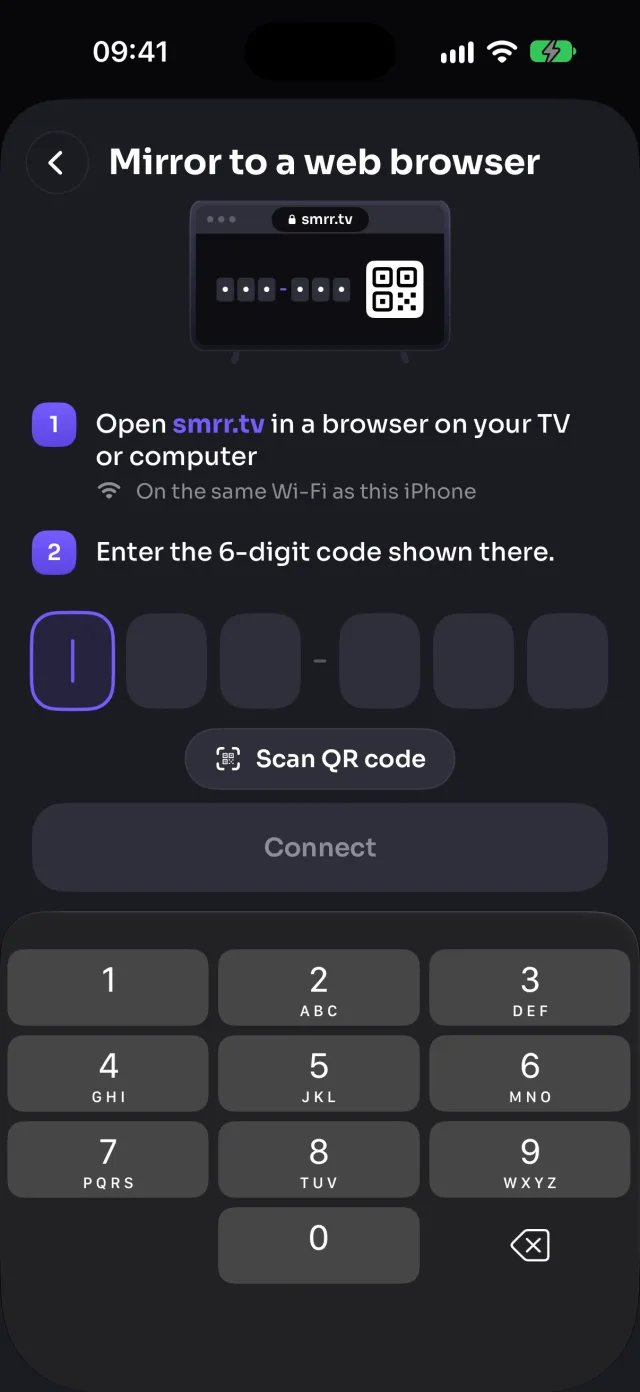
- On the TV or computer, open smrr.tv in its web browser. The page shows a 6-digit code and a QR code.
- In MirrorGo, open the TV list and tap Mirror to a web browser.
- Type the code, or scan the QR code.
- Open Screen Mirroring, tap Start mirroring, then Start Sharing (Start Broadcast before iOS 26).
What you can do on Any web browser
- Screen mirroringWorksWith sound
- Photos & videosWorks
- CameraWorks
- YouTubeWorks
- Web videosWorks
- Live TV channelsWorksThe browser plays the channel itself
- Web imagesWorks
What works as a screen
Smart TVs with a modern web browser, Windows PCs, Macs, Chromebooks and tablets, with a recent browser such as Chrome, Edge, Safari or Firefox.
Private and direct
The video goes straight from your iPhone to the browser over your Wi-Fi. smrr.tv only introduces the two; your screen isn't sent through it. That's why both need to be on the same Wi-Fi.
Tips
Keep the smrr.tv page open while you mirror. Reloading it reconnects by itself.
For an LG or Samsung TV nearby, MirrorGo's "Open on…" button opens the TV's browser for you.
Questions
Do I need to install anything on the TV or computer?
No, only a web browser. Open smrr.tv and type the code it shows into MirrorGo.
Can someone else see my screen with my code?
To connect, a phone needs the code shown on that screen, so someone has to be looking at it. The video itself only travels over your own Wi-Fi.