 MirrorGo
How to connect your iPhone to a Fire TV
Connecting your iPhone to a Fire TV with MirrorGo takes a few seconds: both on the same Wi-Fi, pick the TV, done. Nothing to install on the TV, and MirrorGo remembers it for next time.
Step by step
- Turn on your Fire TV and put your iPhone on the same Wi-Fi.
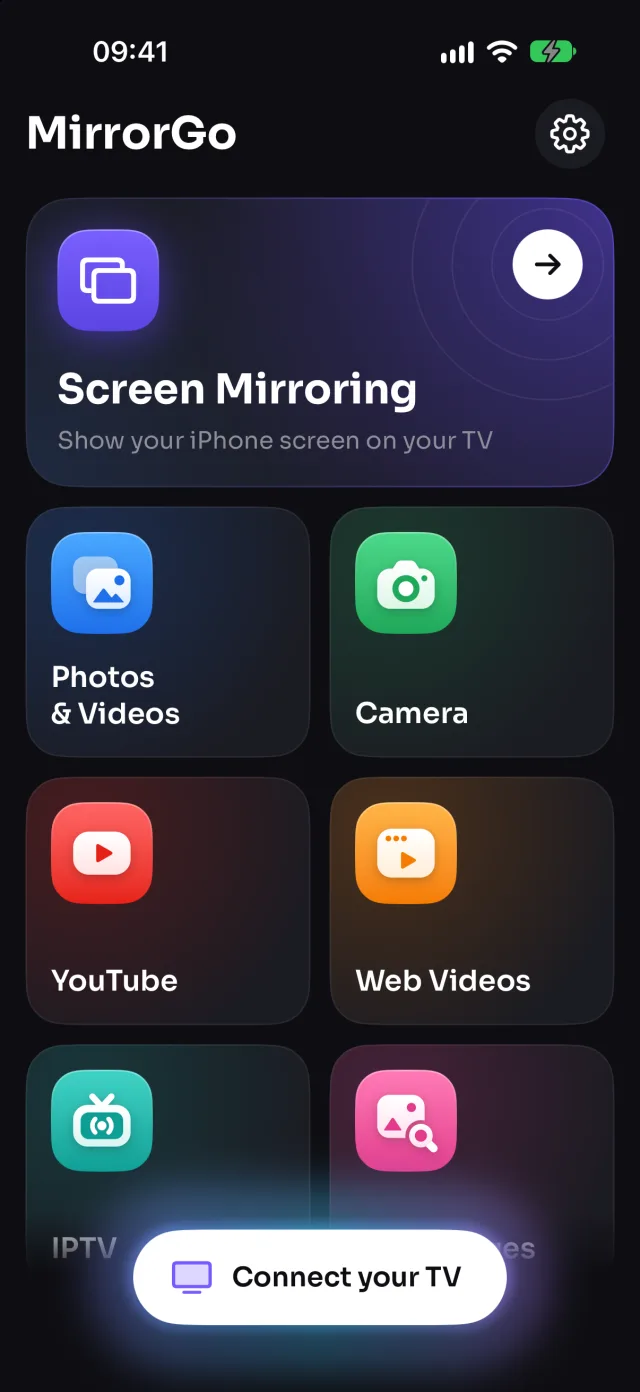
- Open MirrorGo and tap Connect your TV. Your Fire TV shows up by its name.
- Tap it to connect. No app on the Fire TV, no pairing, no code.
- Connected. MirrorGo connects to it again next time.
On Fire TV
Every Fire TV has a media player built in, and MirrorGo uses it: Fire TV Sticks (including the 4K and 4K Max), the Fire TV Cube, and smart TVs with Fire TV built in.
Not listed? Press Home on the Fire TV remote to wake it, and check it's on the same Wi-Fi as the phone.
Good to know
- The phone and the TV must be on the same Wi-Fi network, not a guest network.
- MirrorGo needs Local Network access (iOS asks the first time). If you said no: Settings › MirrorGo › Local Network.
- Turn off any VPN on the phone while you cast.
- No TV found at all? Any TV with a web browser works through smrr.tv.
Coming soon to the App Store
More for Fire TV
Screen mirroringMirror your iPhone to a Fire TVPhotos & videosHow to Cast Photos and Videos from iPhone to a Fire TVWeb imagesHow to Show Free Web Images on a Fire TV from an iPhoneLive TV (IPTV)How to Watch Free Live TV Channels (IPTV) on a Fire TV with an iPhoneWeb videosHow to Cast Videos from Any Website to a Fire TV with an iPhoneCameraHow to Show Your iPhone Camera Live on a Fire TV
Connect on other TVs
Samsung TVHow to Connect an iPhone to a Samsung TVLG TVHow to Connect an iPhone to an LG TVRokuHow to Connect an iPhone to a RokuGoogle TVHow to Connect an iPhone to a Google TVAndroid TVHow to Connect an iPhone to an Android TVChromecastHow to Connect an iPhone to a ChromecastApple TV & AirPlayHow to Connect an iPhone to an Apple TVAny web browserHow to Connect an iPhone to a Web Browser