 MirrorGo
How to show your iPhone's camera live on a Fire TV
MirrorGo turns your iPhone into a live camera for a Fire TV: show the room, a whiteboard, a document, your pet or yourself, with the front or back camera.
Step by step
- Connect MirrorGo to a Fire TV.
- On MirrorGo's Home, tap Camera and allow camera access.
- Pick the front or back camera, and turn Sound on if you want the microphone too.
- Tap Start casting. The TV shows what the camera sees, level with the horizon.
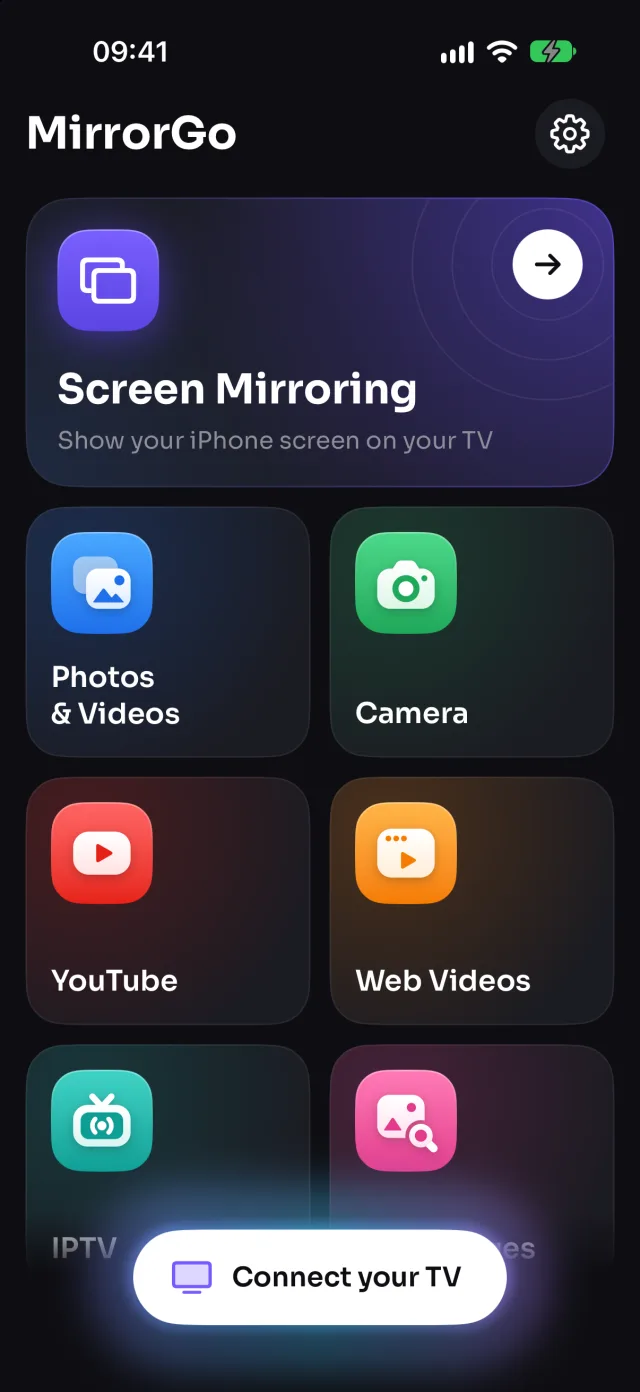
On Fire TV
Picture only: Fire TV's built-in player shows the camera without sound.
Good to know
- The front camera is mirrored on the TV, like in the preview.
- Casting stops when you close the screen or leave the app (iOS stops the camera).
Coming soon to the App Store
More for Fire TV
Screen mirroringMirror your iPhone to a Fire TVConnectHow to Connect an iPhone to a Fire TVPhotos & videosHow to Cast Photos and Videos from iPhone to a Fire TVWeb imagesHow to Show Free Web Images on a Fire TV from an iPhoneLive TV (IPTV)How to Watch Free Live TV Channels (IPTV) on a Fire TV with an iPhoneWeb videosHow to Cast Videos from Any Website to a Fire TV with an iPhone
Camera on other TVs
Samsung TVHow to Show Your iPhone Camera Live on a Samsung TVLG TVHow to Show Your iPhone Camera Live on an LG TVRokuHow to Show Your iPhone Camera Live on a RokuGoogle TVHow to Show Your iPhone Camera Live on a Google TVAndroid TVHow to Show Your iPhone Camera Live on an Android TVChromecastHow to Show Your iPhone Camera Live on a ChromecastApple TV & AirPlayHow to Show Your iPhone Camera Live on an Apple TVAny web browserHow to Show Your iPhone Camera Live on a Web Browser