 MirrorGo
How to show your iPhone's camera live on an Android TV
MirrorGo turns your iPhone into a live camera for an Android TV: show the room, a whiteboard, a document, your pet or yourself, with the front or back camera.
Step by step
- Connect MirrorGo to an Android TV.
- On MirrorGo's Home, tap Camera and allow camera access.
- Pick the front or back camera, and turn Sound on if you want the microphone too.
- Tap Start casting. The TV shows what the camera sees, level with the horizon.
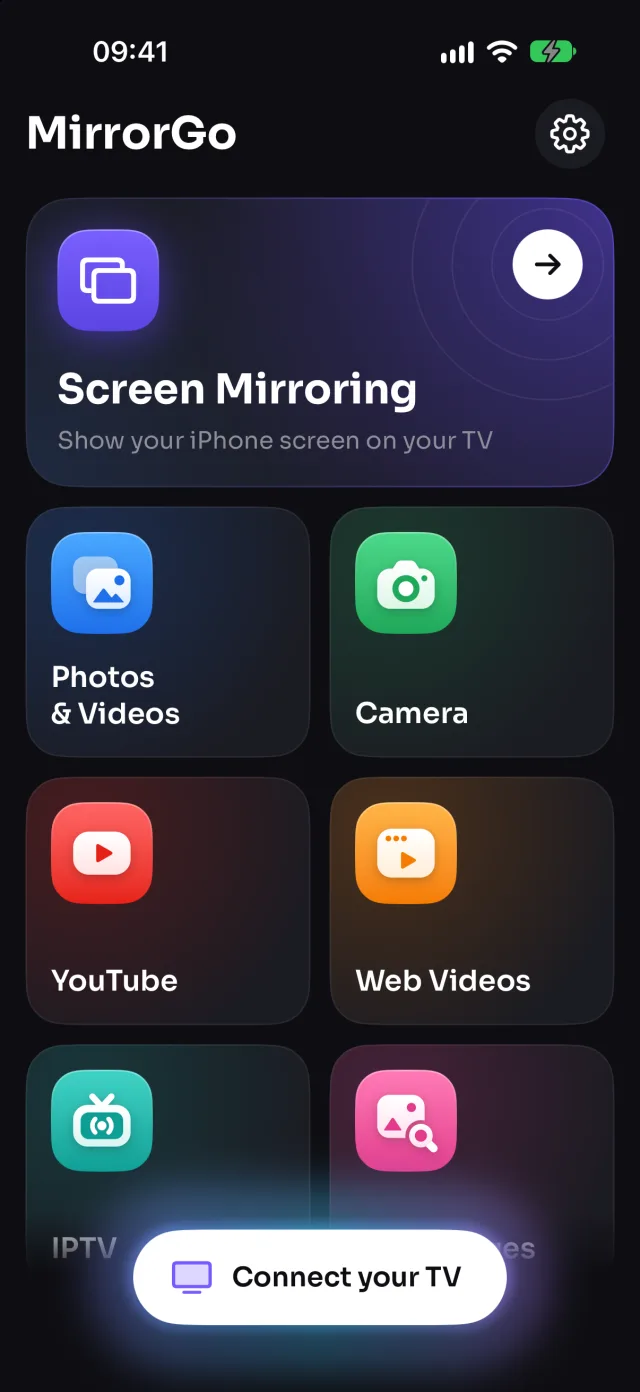
On Android TV
With sound: turn Sound on before you start and MirrorGo adds the microphone.
Good to know
- The front camera is mirrored on the TV, like in the preview.
- Casting stops when you close the screen or leave the app (iOS stops the camera).
Coming soon to the App Store
More for Android TV
Screen mirroringMirror your iPhone to an Android TVConnectHow to Connect an iPhone to an Android TVPhotos & videosHow to Cast Photos and Videos from iPhone to an Android TVWeb imagesHow to Show Free Web Images on an Android TV from an iPhoneLive TV (IPTV)How to Watch Free Live TV Channels (IPTV) on an Android TV with an iPhoneYouTubeHow to Cast YouTube from iPhone to an Android TVWeb videosHow to Cast Videos from Any Website to an Android TV with an iPhone
Camera on other TVs
Samsung TVHow to Show Your iPhone Camera Live on a Samsung TVLG TVHow to Show Your iPhone Camera Live on an LG TVRokuHow to Show Your iPhone Camera Live on a RokuGoogle TVHow to Show Your iPhone Camera Live on a Google TVChromecastHow to Show Your iPhone Camera Live on a ChromecastFire TVHow to Show Your iPhone Camera Live on a Fire TVApple TV & AirPlayHow to Show Your iPhone Camera Live on an Apple TVAny web browserHow to Show Your iPhone Camera Live on a Web Browser