 MirrorGo
How to show beautiful free images on a Chromecast
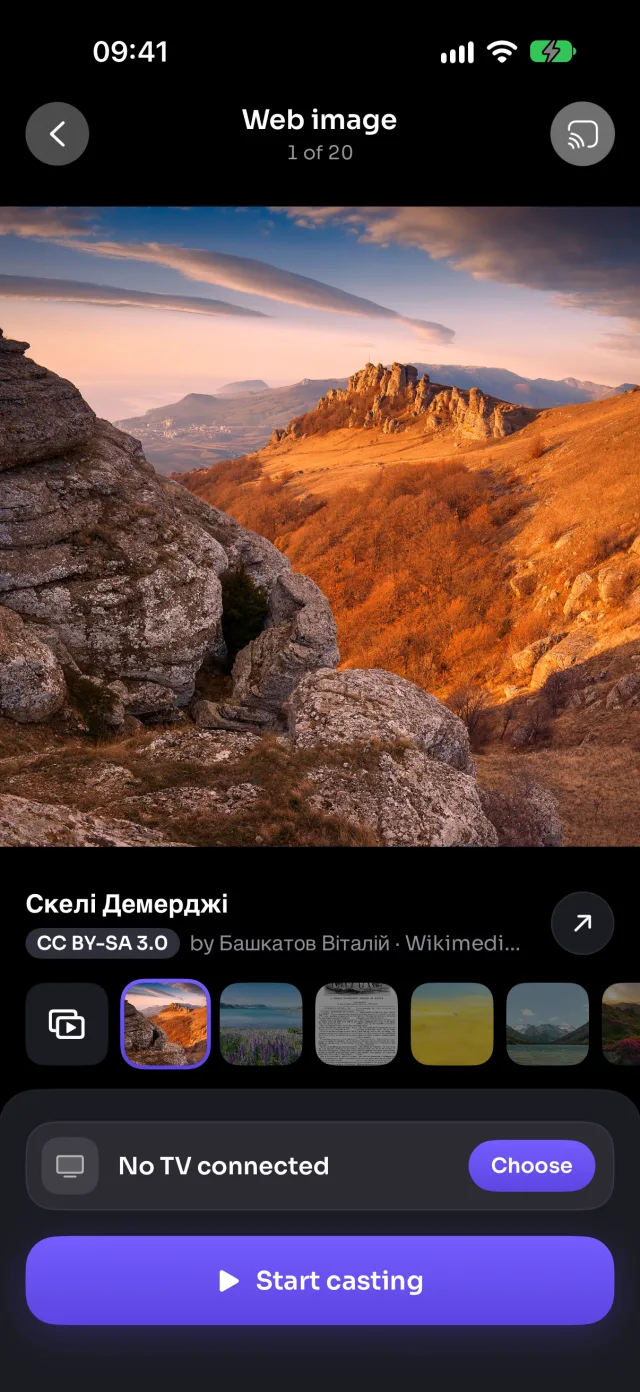
MirrorGo searches millions of free, openly licensed images from Wikimedia Commons (landscapes, space, cities, animals, art) and shows them full screen on a Chromecast, one by one or as a slideshow.
Step by step
- Connect MirrorGo to a Chromecast.
- On MirrorGo's Home, tap Web Images.
- Search for anything, or tap a topic: Nature, Space, Cities, Animals, Ocean, Mountains, Art, Flowers.
- Tap an image, then tap Start casting.
- Swipe to the next image and the TV follows, or turn on the slideshow.
On Chromecast
Images show full screen through the Chromecast.
Good to know
- Each image shows its title, author and licence: tap ↗ to open its page on Wikimedia Commons.
- Recent searches are kept on the start screen, so your favourite topics are one tap away.
- Images that may be mature are filtered out.
Coming soon to the App Store
More for Chromecast
Screen mirroringMirror your iPhone to a ChromecastConnectHow to Connect an iPhone to a ChromecastPhotos & videosHow to Cast Photos and Videos from iPhone to a ChromecastLive TV (IPTV)How to Watch Free Live TV Channels (IPTV) on a Chromecast with an iPhoneYouTubeHow to Cast YouTube from iPhone to a ChromecastWeb videosHow to Cast Videos from Any Website to a Chromecast with an iPhoneCameraHow to Show Your iPhone Camera Live on a Chromecast
Web images on other TVs
Samsung TVHow to Show Free Web Images on a Samsung TV from an iPhoneLG TVHow to Show Free Web Images on an LG TV from an iPhoneRokuHow to Show Free Web Images on a Roku from an iPhoneGoogle TVHow to Show Free Web Images on a Google TV from an iPhoneAndroid TVHow to Show Free Web Images on an Android TV from an iPhoneFire TVHow to Show Free Web Images on a Fire TV from an iPhoneApple TV & AirPlayHow to Show Free Web Images on an Apple TV from an iPhoneAny web browserHow to Show Free Web Images on a Web Browser from an iPhone