 MirrorGo
How to show beautiful free images on a Samsung TV
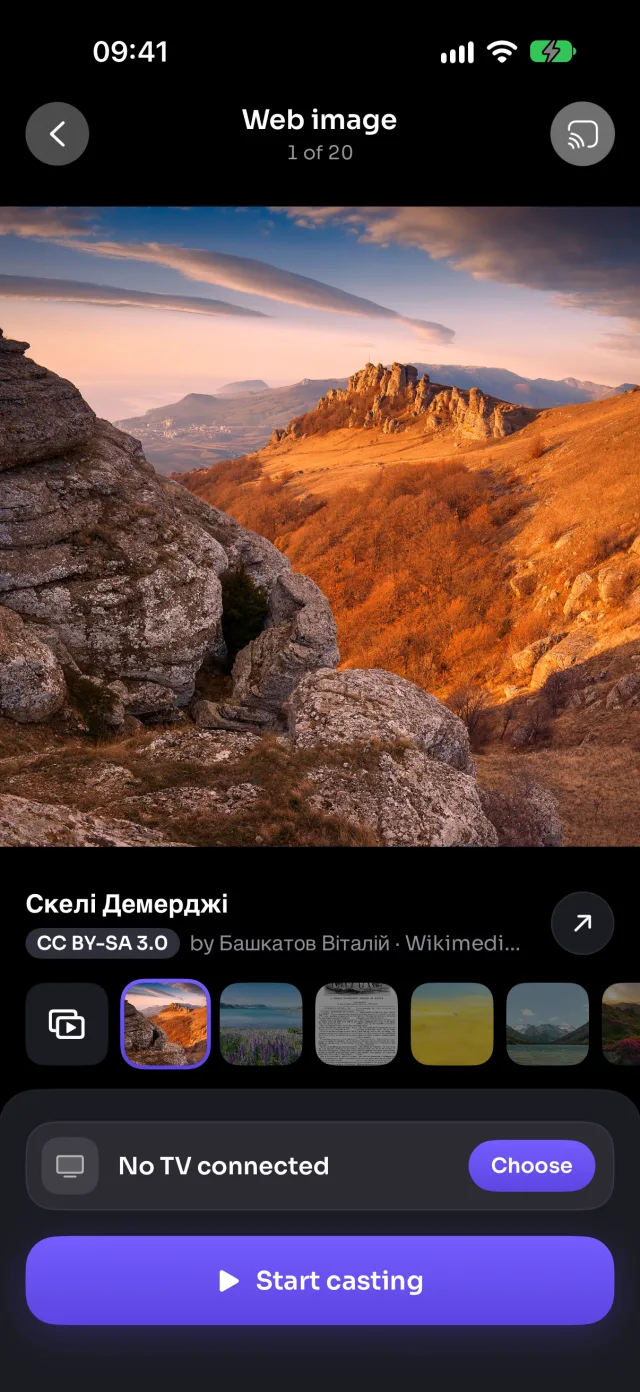
MirrorGo searches millions of free, openly licensed images from Wikimedia Commons (landscapes, space, cities, animals, art) and shows them full screen on a Samsung TV, one by one or as a slideshow.
Step by step
- Connect MirrorGo to a Samsung TV.
- On MirrorGo's Home, tap Web Images.
- Search for anything, or tap a topic: Nature, Space, Cities, Animals, Ocean, Mountains, Art, Flowers.
- Tap an image, then tap Start casting.
- Swipe to the next image and the TV follows, or turn on the slideshow.
On Samsung TV
Images show in the TV's own media player, sized for the TV's screen.
Good to know
- Each image shows its title, author and licence: tap ↗ to open its page on Wikimedia Commons.
- Recent searches are kept on the start screen, so your favourite topics are one tap away.
- Images that may be mature are filtered out.
Coming soon to the App Store
More for Samsung TV
Screen mirroringMirror your iPhone to a Samsung TVConnectHow to Connect an iPhone to a Samsung TVPhotos & videosHow to Cast Photos and Videos from iPhone to a Samsung TVLive TV (IPTV)How to Watch Free Live TV Channels (IPTV) on a Samsung TV with an iPhoneYouTubeHow to Cast YouTube from iPhone to a Samsung TVWeb videosHow to Cast Videos from Any Website to a Samsung TV with an iPhoneCameraHow to Show Your iPhone Camera Live on a Samsung TV
Web images on other TVs
LG TVHow to Show Free Web Images on an LG TV from an iPhoneRokuHow to Show Free Web Images on a Roku from an iPhoneGoogle TVHow to Show Free Web Images on a Google TV from an iPhoneAndroid TVHow to Show Free Web Images on an Android TV from an iPhoneChromecastHow to Show Free Web Images on a Chromecast from an iPhoneFire TVHow to Show Free Web Images on a Fire TV from an iPhoneApple TV & AirPlayHow to Show Free Web Images on an Apple TV from an iPhoneAny web browserHow to Show Free Web Images on a Web Browser from an iPhone