 MirrorGo
How to cast videos from websites to a Samsung TV
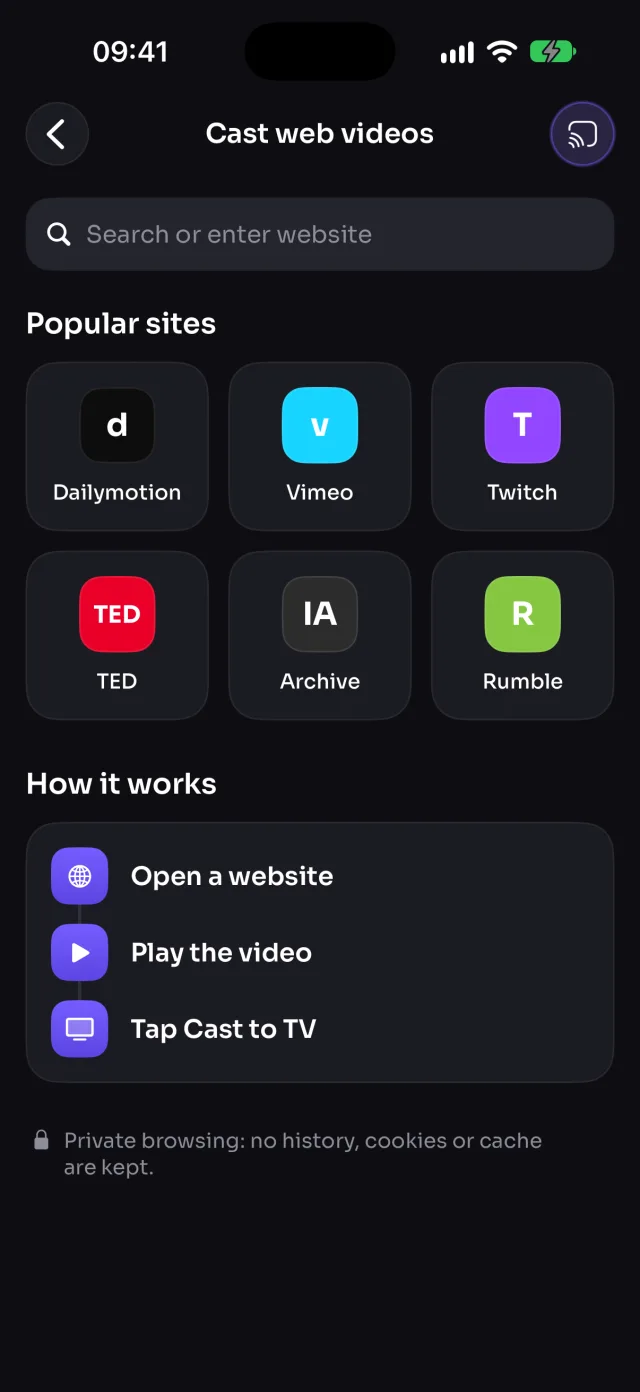
Open a website in MirrorGo, play its video, and tap Cast to TV: MirrorGo finds the video (not the ad) and a Samsung TV plays it in full quality while you keep browsing.
Step by step
- Connect MirrorGo to a Samsung TV.
- On MirrorGo's Home, tap Web Videos.
- Open a site from the shortcuts, or type its address.
- Play the video on the page. Cast to TV turns on once MirrorGo finds it.
- Tap Cast to TV. If it found several videos, pick the right one ("1 of 3").
On Samsung TV
Samsung's player gets the video as one continuous stream through your iPhone, with the site's ad breaks joined in, so it plays from start to end; seeking from the phone restarts it at that point.
Good to know
- MirrorGo blocks ad networks and never casts very short clips, so ads stay off the TV.
- Sites that protect their videos (Netflix, Prime Video, Disney+) can't be cast.
- Keep MirrorGo open while it plays. Browsing is private: no history, cookies or cache are kept.
Coming soon to the App Store
More for Samsung TV
Screen mirroringMirror your iPhone to a Samsung TVConnectHow to Connect an iPhone to a Samsung TVPhotos & videosHow to Cast Photos and Videos from iPhone to a Samsung TVWeb imagesHow to Show Free Web Images on a Samsung TV from an iPhoneLive TV (IPTV)How to Watch Free Live TV Channels (IPTV) on a Samsung TV with an iPhoneYouTubeHow to Cast YouTube from iPhone to a Samsung TVCameraHow to Show Your iPhone Camera Live on a Samsung TV
Web videos on other TVs
LG TVHow to Cast Videos from Any Website to an LG TV with an iPhoneRokuHow to Cast Videos from Any Website to a Roku with an iPhoneGoogle TVHow to Cast Videos from Any Website to a Google TV with an iPhoneAndroid TVHow to Cast Videos from Any Website to an Android TV with an iPhoneChromecastHow to Cast Videos from Any Website to a Chromecast with an iPhoneFire TVHow to Cast Videos from Any Website to a Fire TV with an iPhoneApple TV & AirPlayHow to Cast Videos from Any Website to an Apple TV with an iPhoneAny web browserHow to Cast Videos from Any Website to a Web Browser with an iPhone